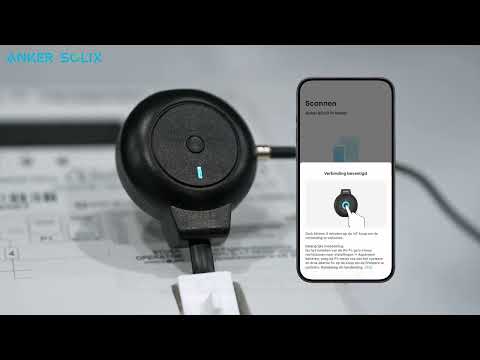
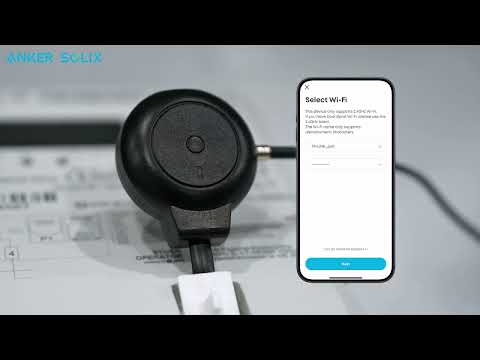
If your P1 Meter appears offline, it may not have been added to your Home System. This can happen if the initial connection to Solarbank failed, so the device can't display power usage data. This results in the message: "Please keep the device online or join the site."
To resolve this issue, try the following:
Method 1: Add the device directly from the app's Home System page. Follow the steps below to reset and reconnect P1 Meter.
1. Delete P1 Meter from the device list, then reset P1 Meter by pressing the button on it for 10 seconds.
2. To re-add P1 Meter, open the app and go to the Home page.
3. Tap the gear icon (top right) > Manage Devices.
4. Click the "+" symbol (top right) to enter Select Device page.
5. Click Add Devices and select P1 Meter.
6. When the P1 Meter's blue light starts flashing, briefly press the button to connect to your phone's Bluetooth. The blue light will stay on for 3 seconds before turning off.
7. Follow the prompts to connect the device to your Wi-Fi. While connecting, the blue light will keep flashing. Once connected successfully, the green light will flash once before turning off.
Method 2: If you prefer not to delete P1 Meter, you can directly add it to the home energy station with the steps below.
1. Open the app and go to the Home page.
2. Tap the gear icon (top right) > Manage Devices.
3. Click the "+" symbol (top right).
4. Choose P1 Meter and click Select.
5. The P1 Meter will now appear under Manage Devices page.
If the issue persists, please share your meter model and a photo of your meter box with our customer support.
If you have any questions, feel free to contact us for further assistance.