GSA Web & APP SOP for Anker SOLIX E10 Installers

System Introduction

Create an Account

Access the GSA platform

Accessing Courses

Language Settings

Feedback and Support


System Introduction

GSA is a training platform developed by Anker to support your professional growth and deepen your product expertise.

Through this platform, you can:

- Access installation training courses for E10 products

- Learn at your own pace, anytime and anywhere

- Track your learning progress and course completion status

Create an Account

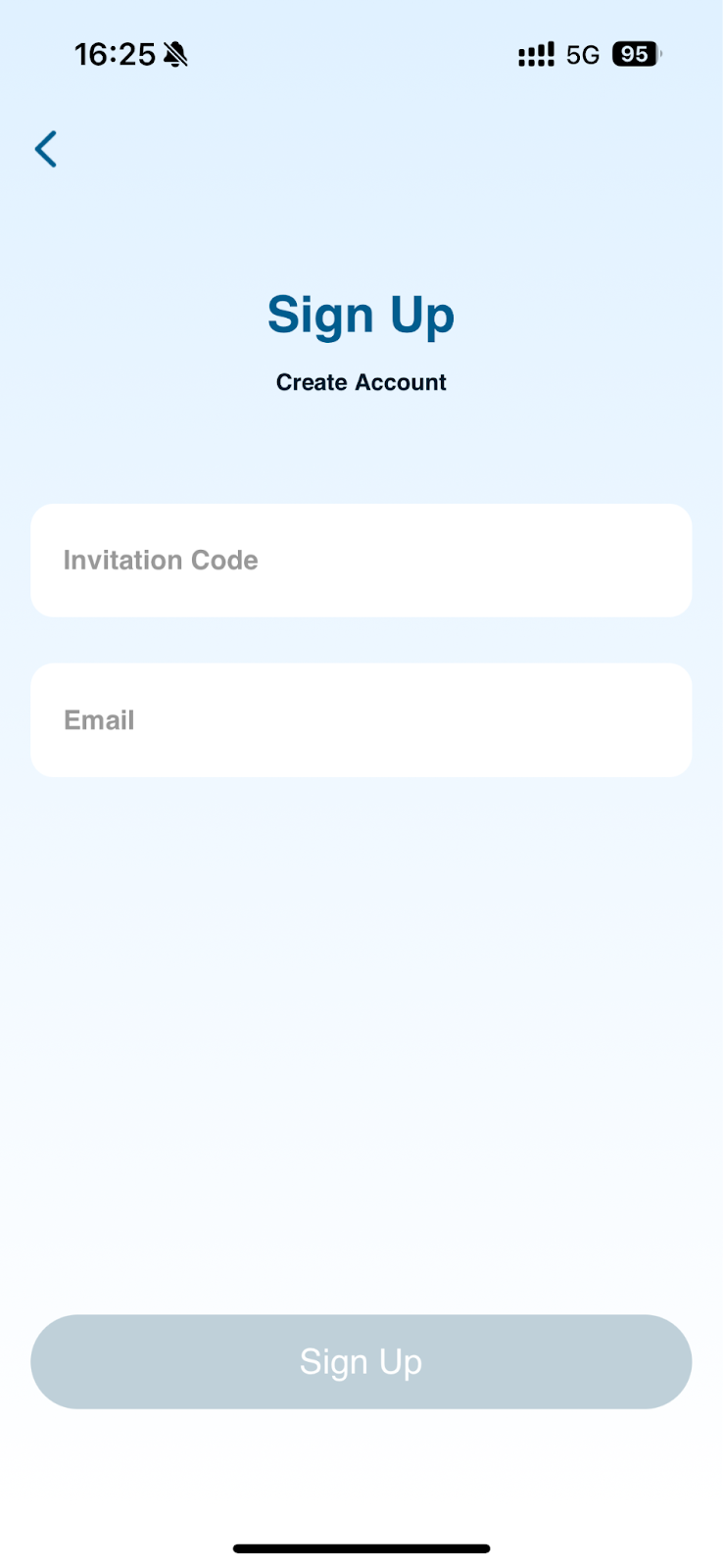
You can create a GSA account directly on the login page through the GSA web portal or mobile app.

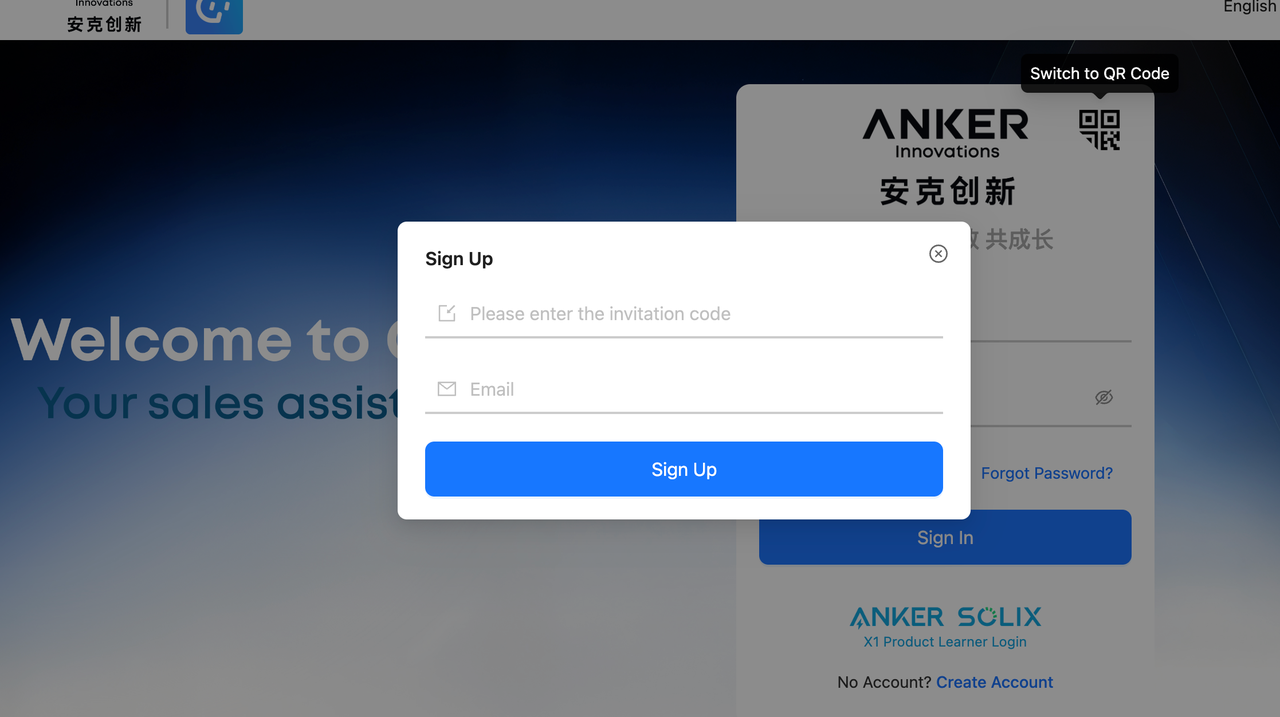
When creating a new account, you will need to enter an invitation code.

If you are an electrician from FPS, please contact your manager to obtain the corresponding code.

If you are an electrician from another company, please use the invitation code below to create your account: XNPF-6782-DFNZ

  • GSA Web Portal

Visit link: https://gsa-app.anker-in.com/web/login 

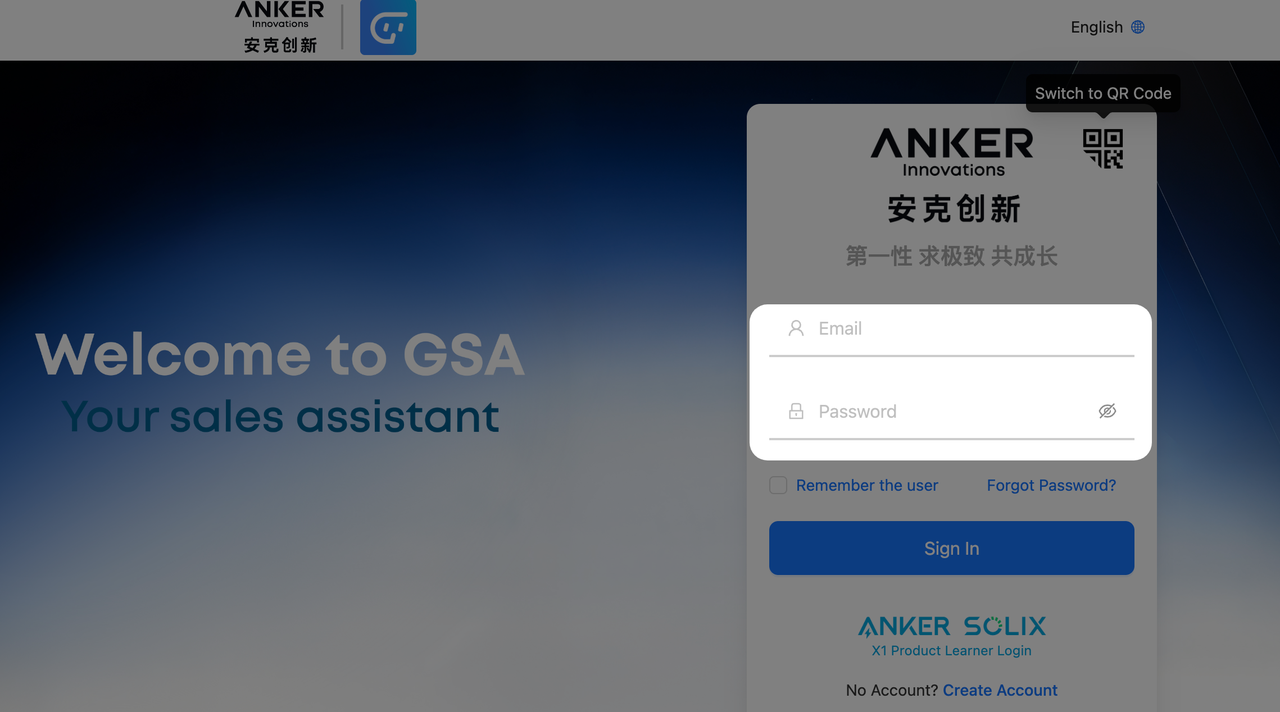
Step 1: Click the "Switch to Account Login" icon
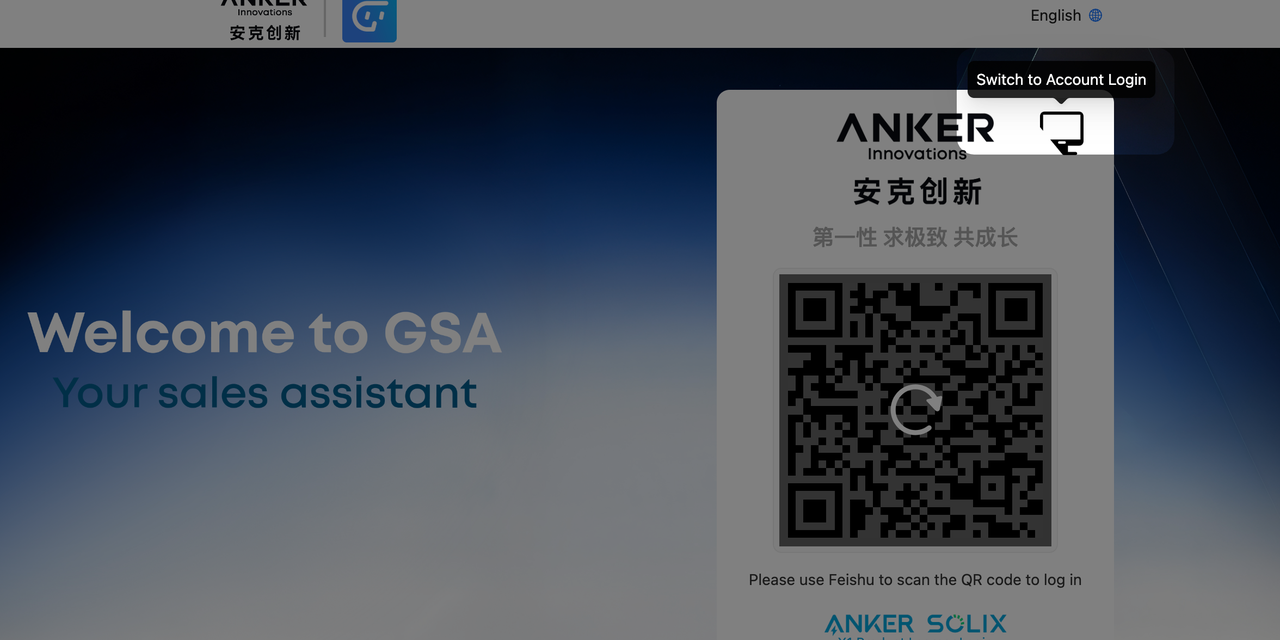
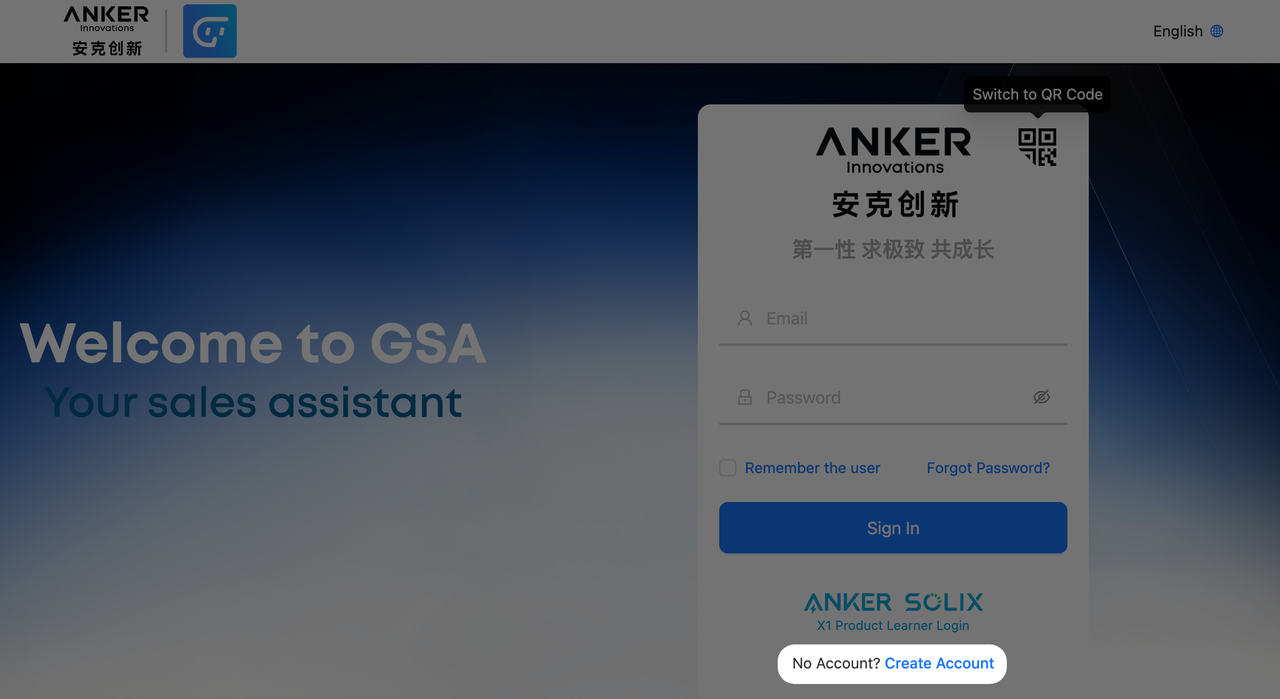
Step 2: Click the "Create Account" button, then enter the invitation code and your email in the pop‑up window to sign up.
  • GSA APP

Download the GSA App from

🍎 iOS Users (App Store) 

https://apps.apple.com/app/anker-gsa-app/id6743792187

📱 Android Users

https://gsa-app.anker-in.com/overview/android/gsa-app.apk

Google Play: 

https://play.google.com/store/apps/details?id=uni.UNIC61E191&pcampaignid=web_share

Open the GSA app, then follow the steps below.

Step 1: Click the "Sign Up" button
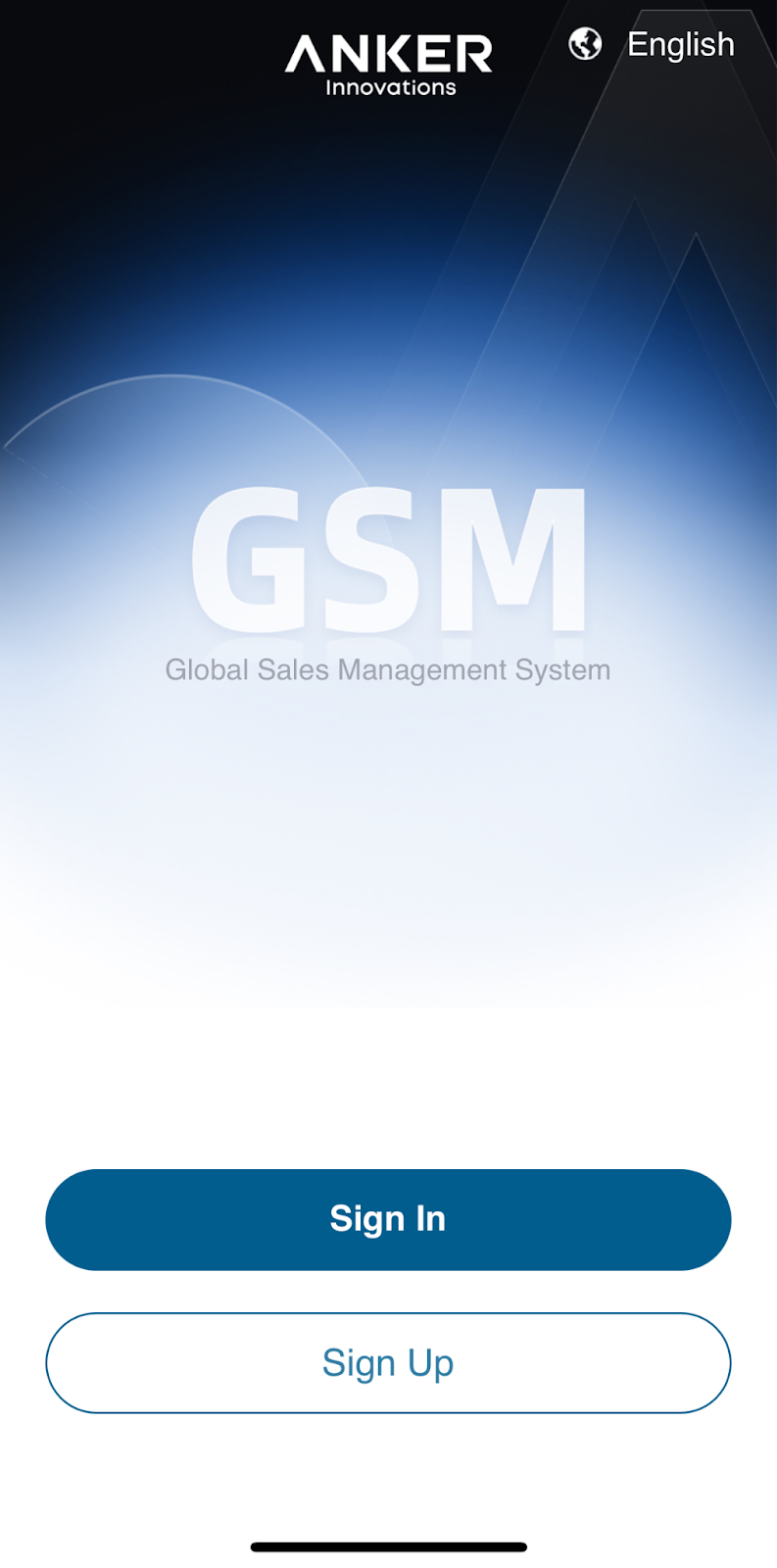
Step 2: Enter the invitation code and your email to sign up.
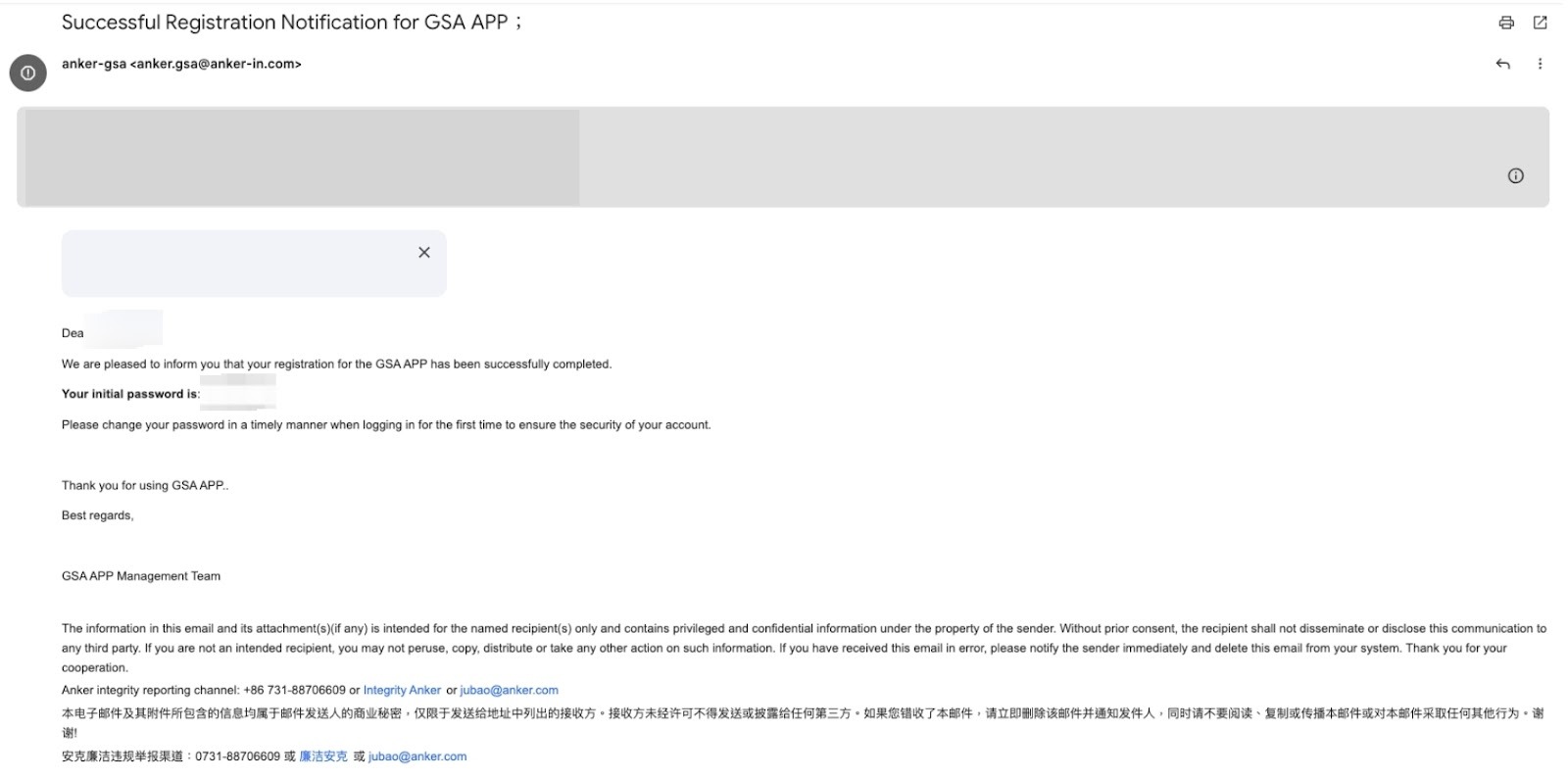
Once your account has been activated, you will receive an email containing your initial password.
Access the GSA platform

You can then log in to GSA using your account credentials via the GSA web portal or mobile app.

You can now access the new system through the following links:

  • GSA Web Portal

Visit link: https://gsa-app.anker-in.com/web/login

Step 1: Click the "Switch to Accouny Login" icon

Step 2: Enter your email and password
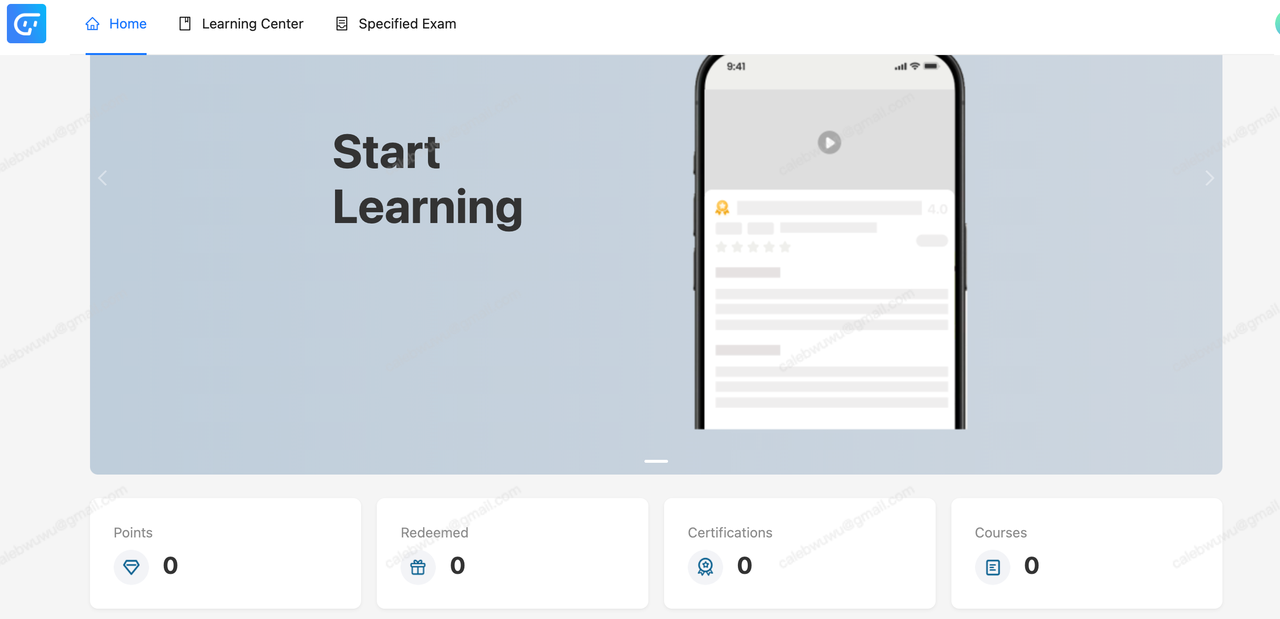
Step 3: Login to Home page
  • GSA APP

Download the GSA App from

🍎 iOS Users (App Store) 

https://apps.apple.com/app/anker-gsa-app/id6743792187

📱 Android Users

https://gsa-app.anker-in.com/overview/android/gsa-app.apk

Google Play: 

https://play.google.com/store/apps/details?id=uni.UNIC61E191&pcampaignid=web_share

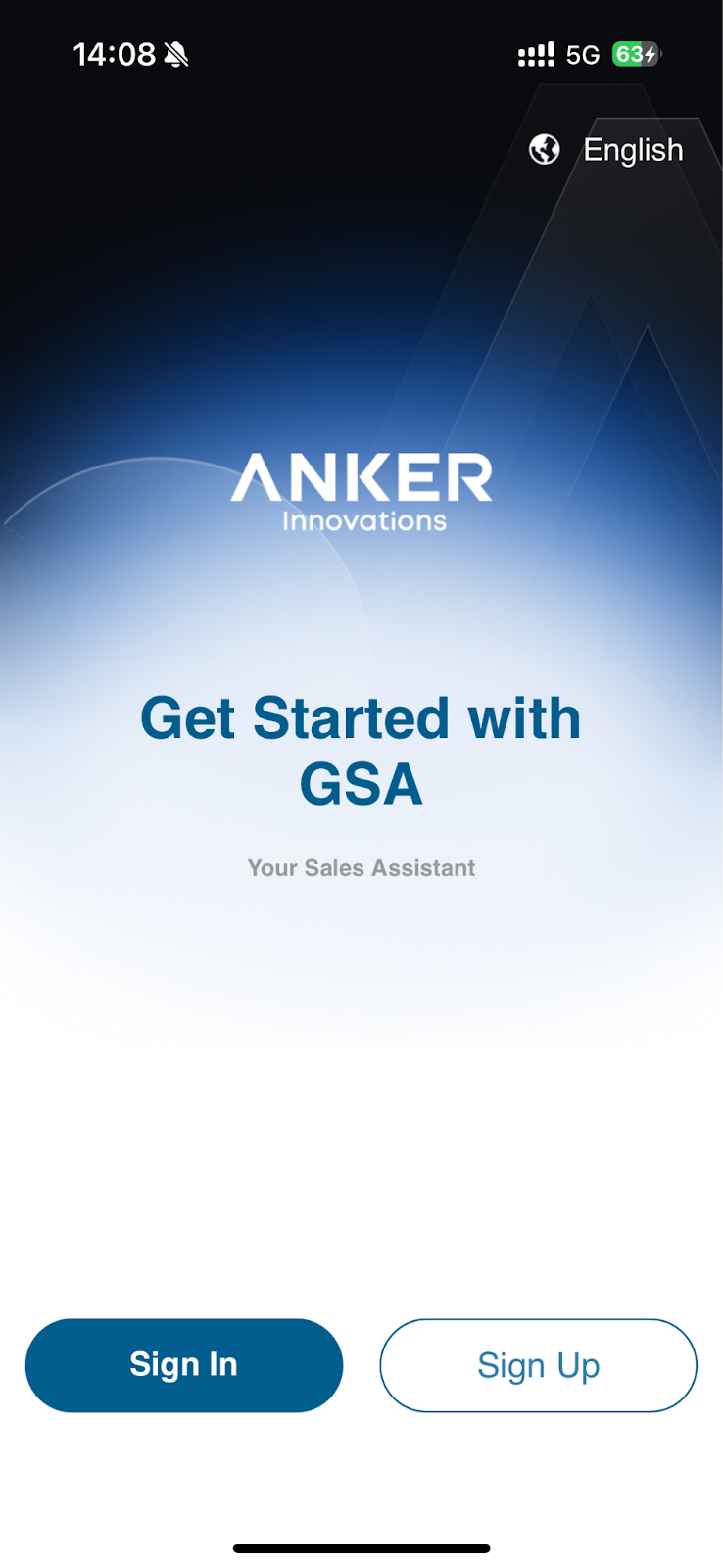
Step 1: Click "Sign In".      
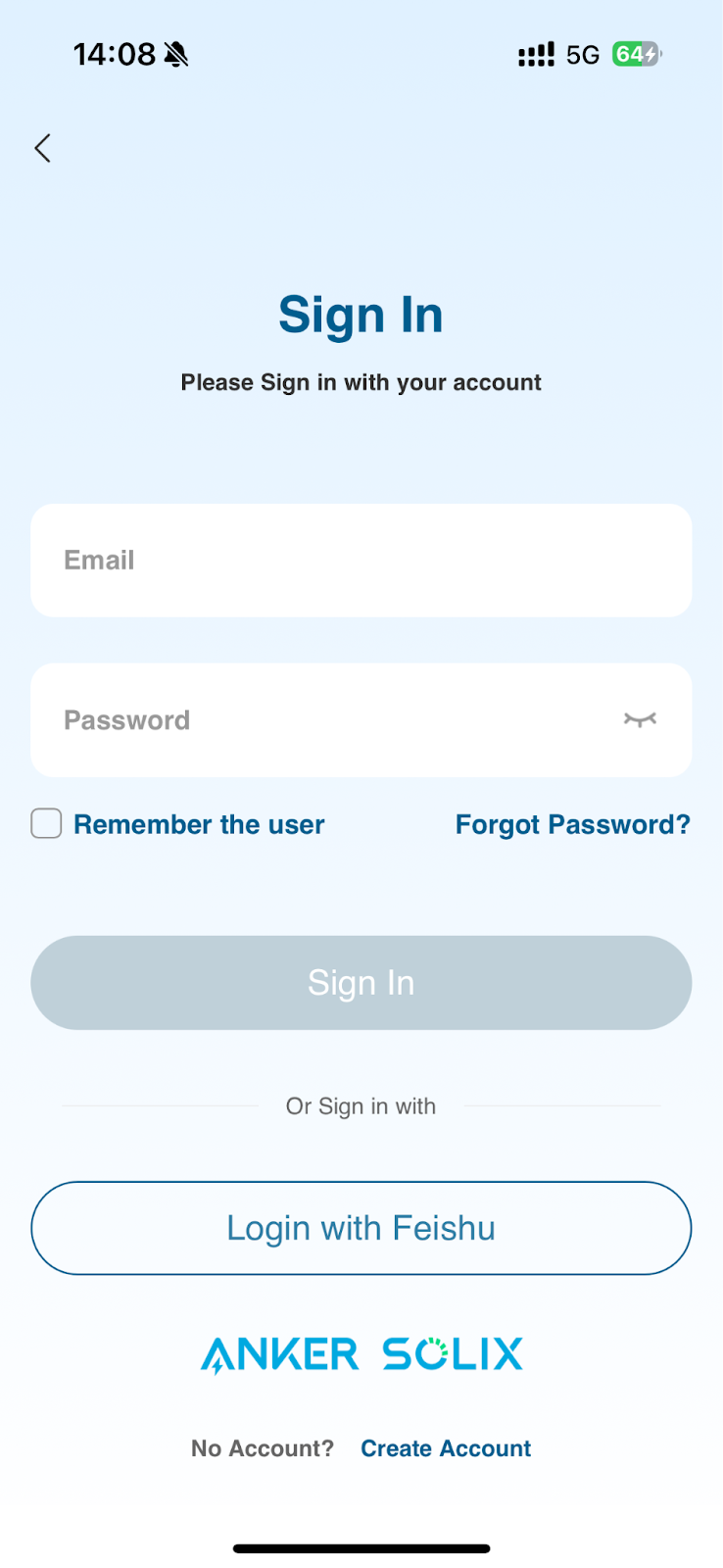
Step 2: Enter your email and password
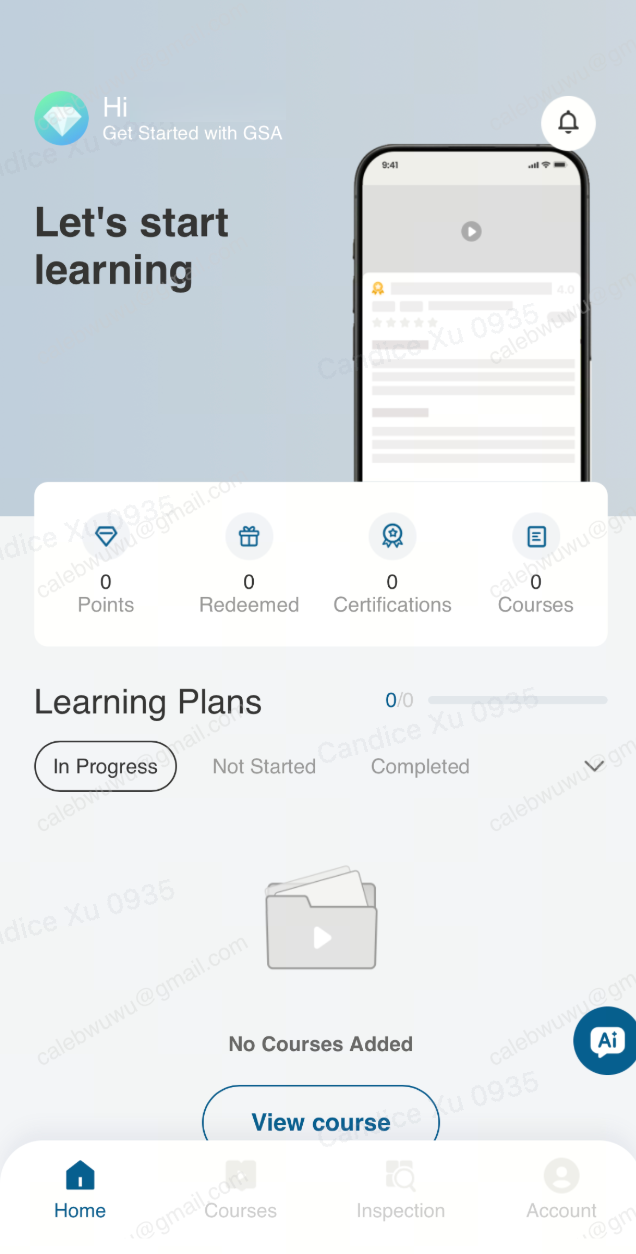
Step 3: Login to Home page
Accessing Courses

After logging in:
GSA Web Portal

GSA APP

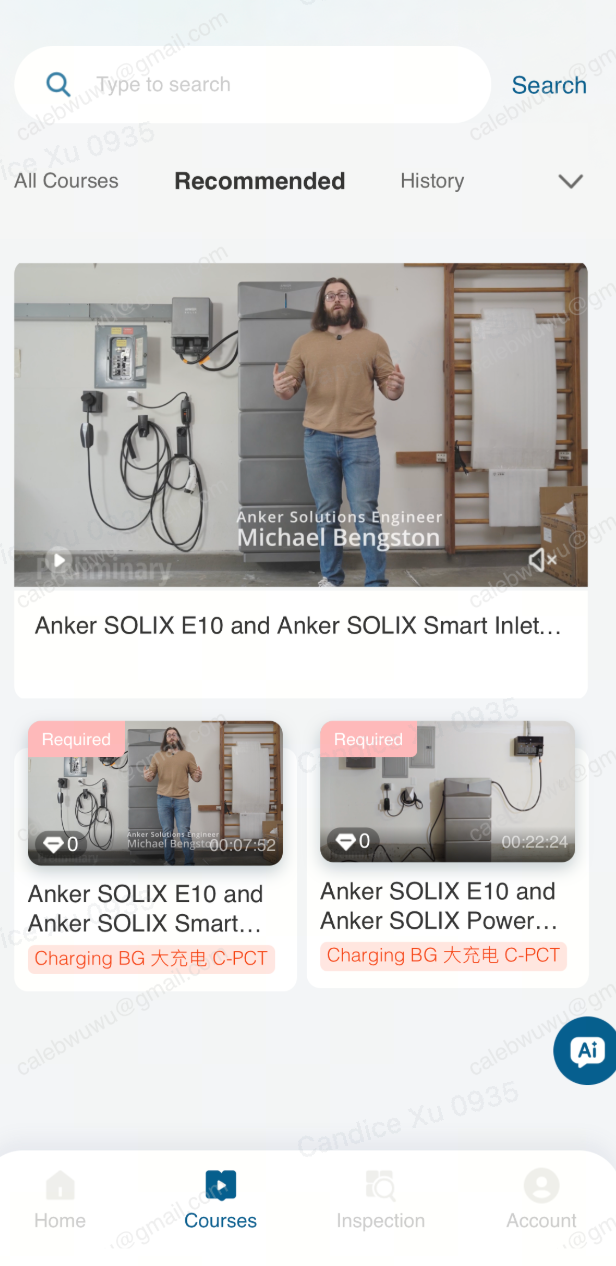
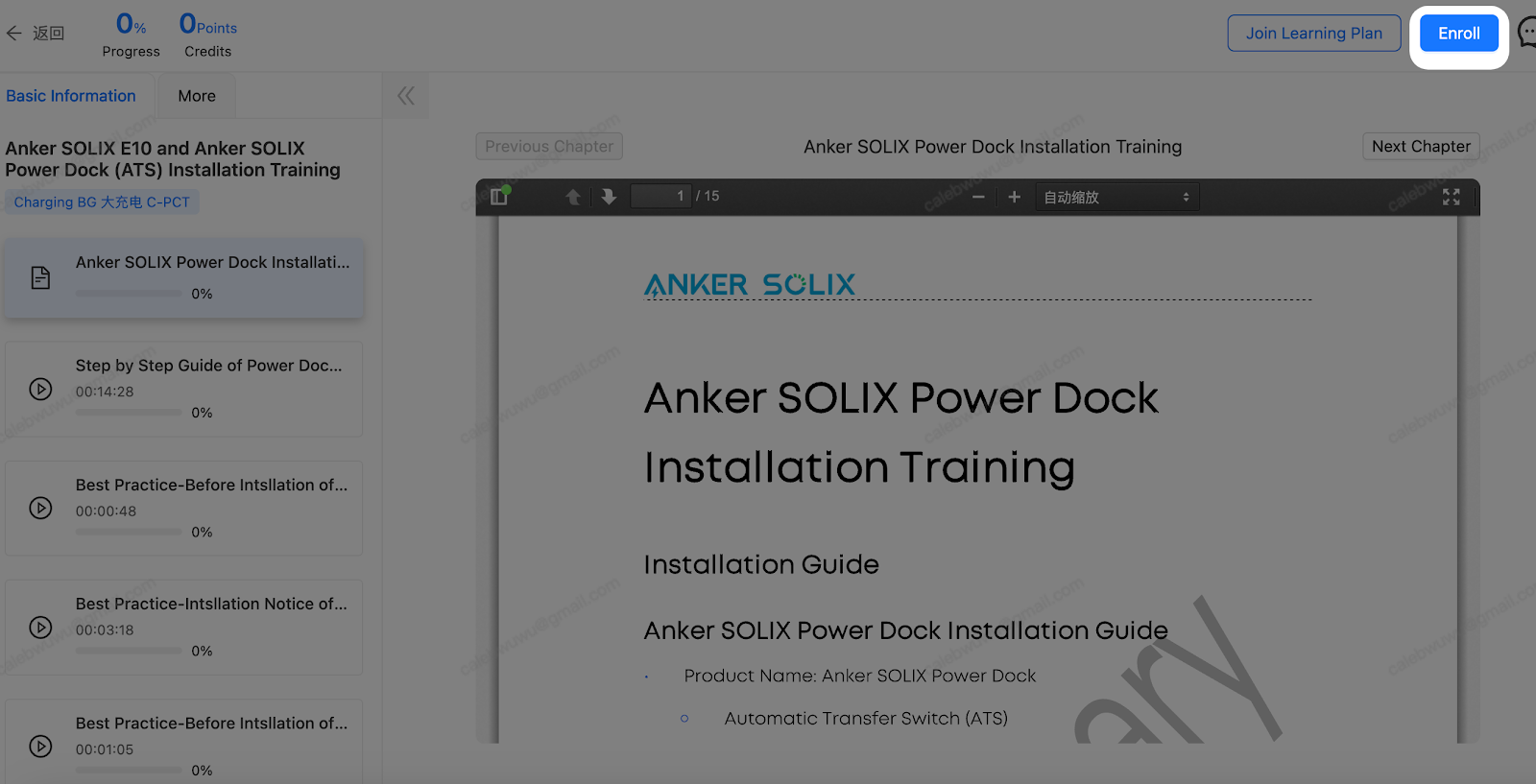
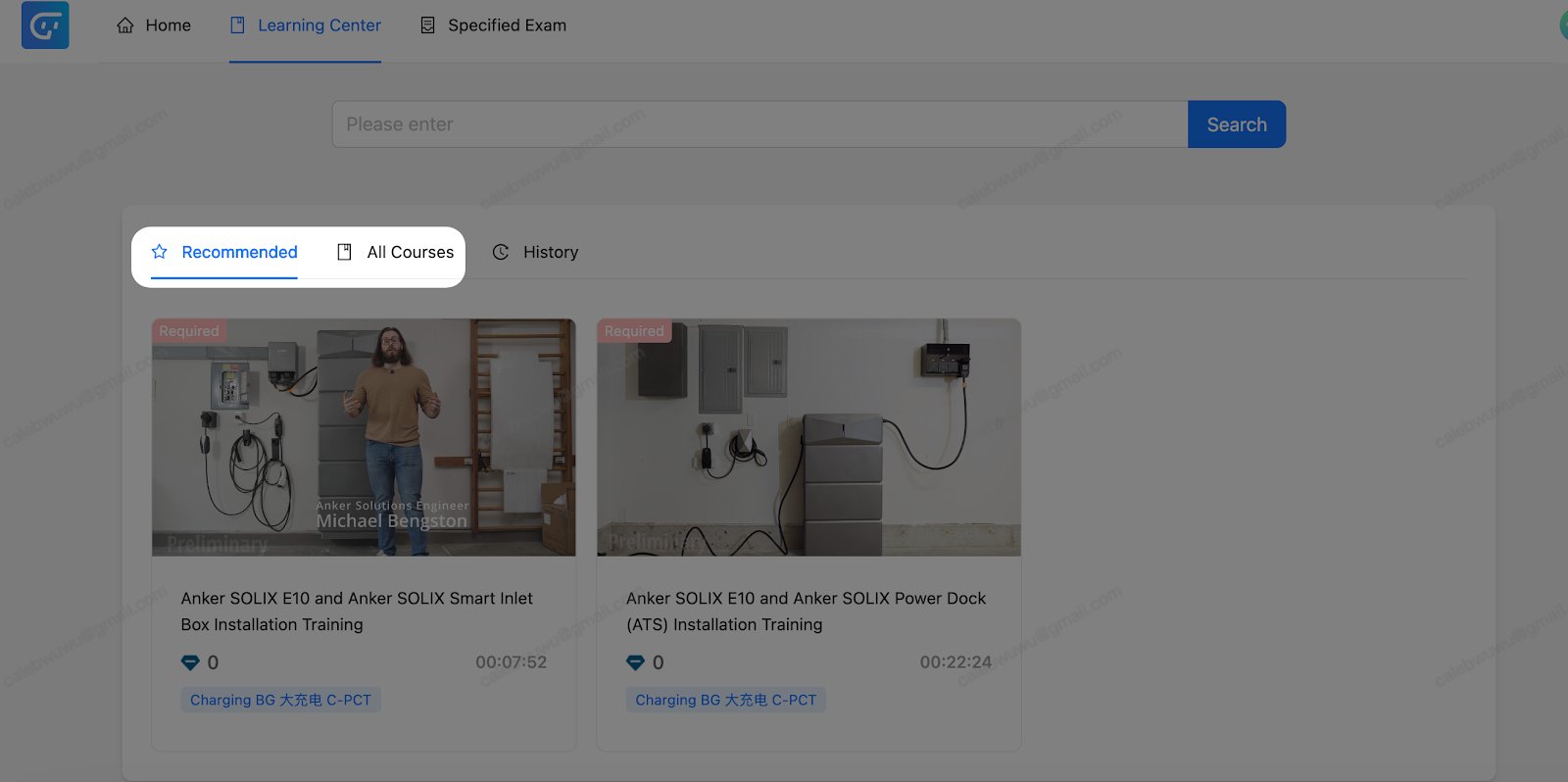
Step 1: Go to “Learning Center” to view Recommended or All Courses

Step 1: Go to “Courses” to view Recommended or All Courses

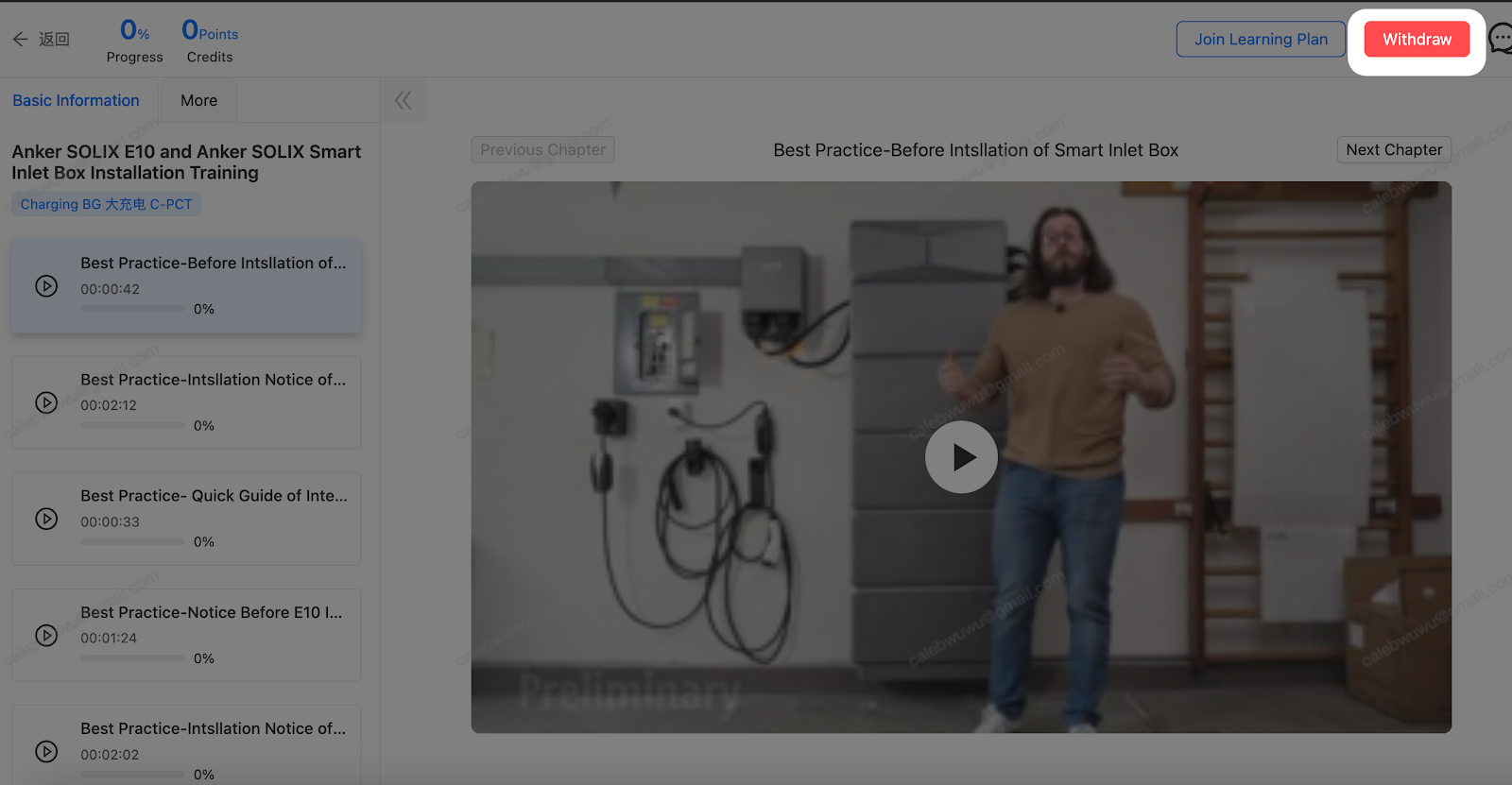
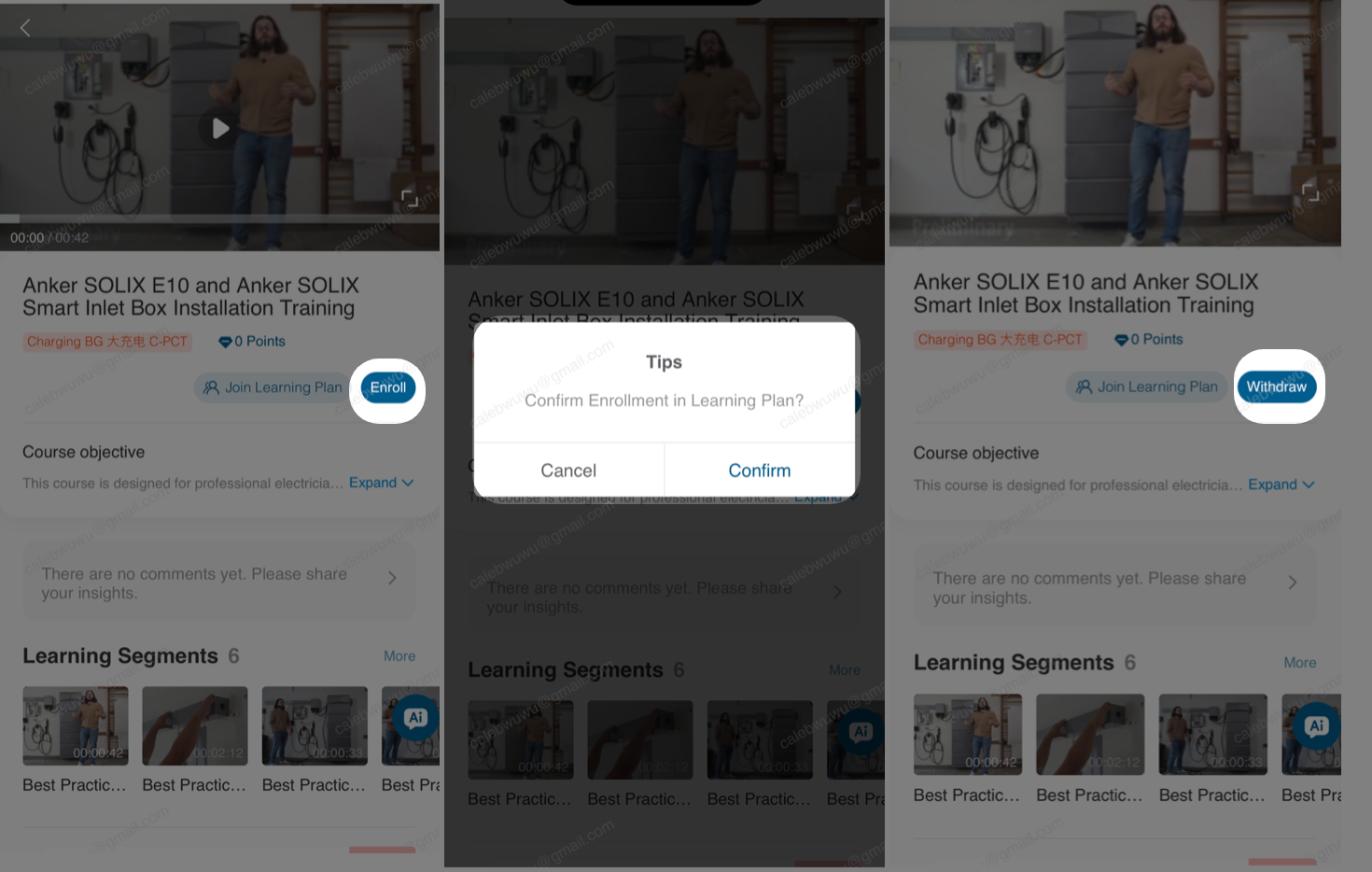
Step 2: Click the course card to enroll


Then you can take the course chapter by chapter

Step 2: Click the course card to enroll

Then you can take the course chapter by chapter

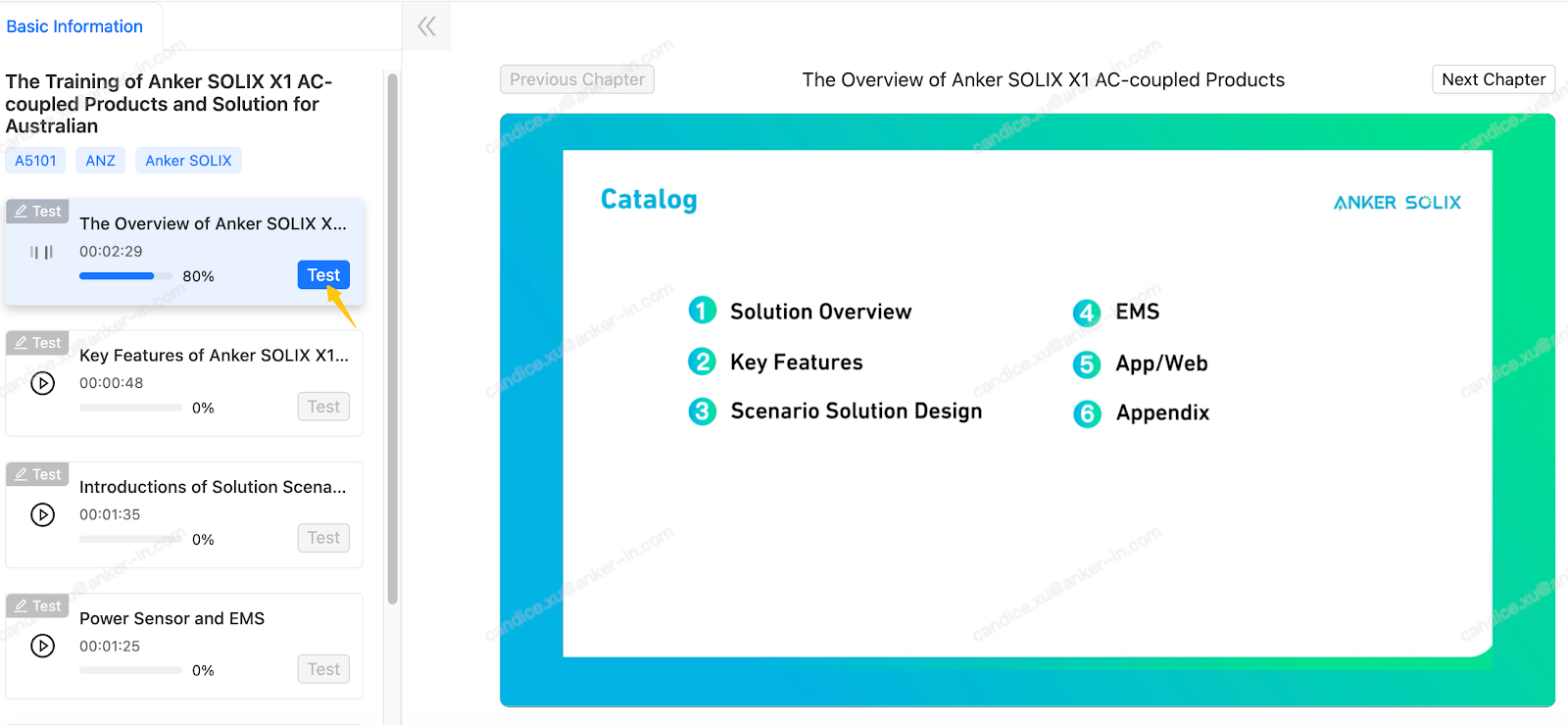
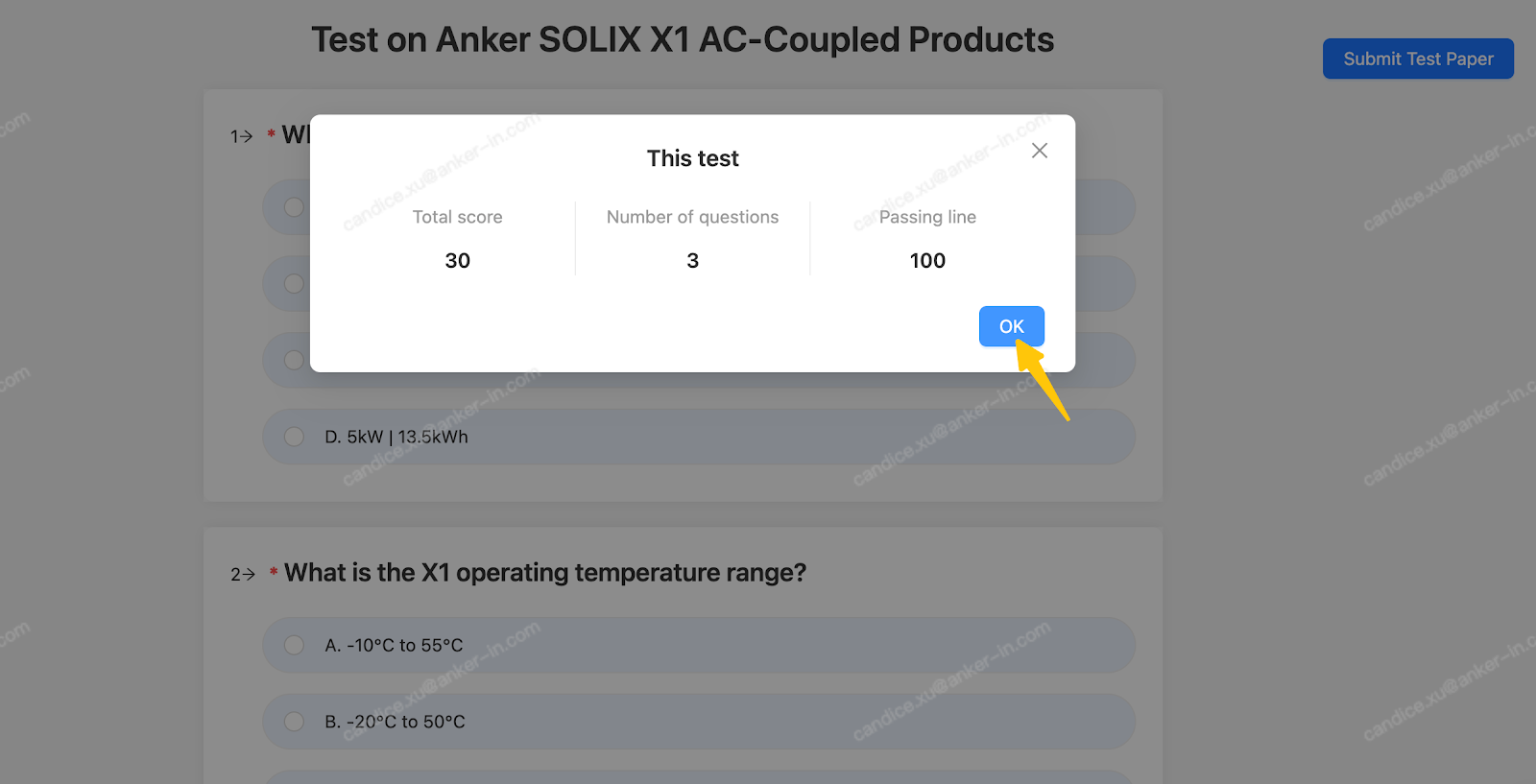
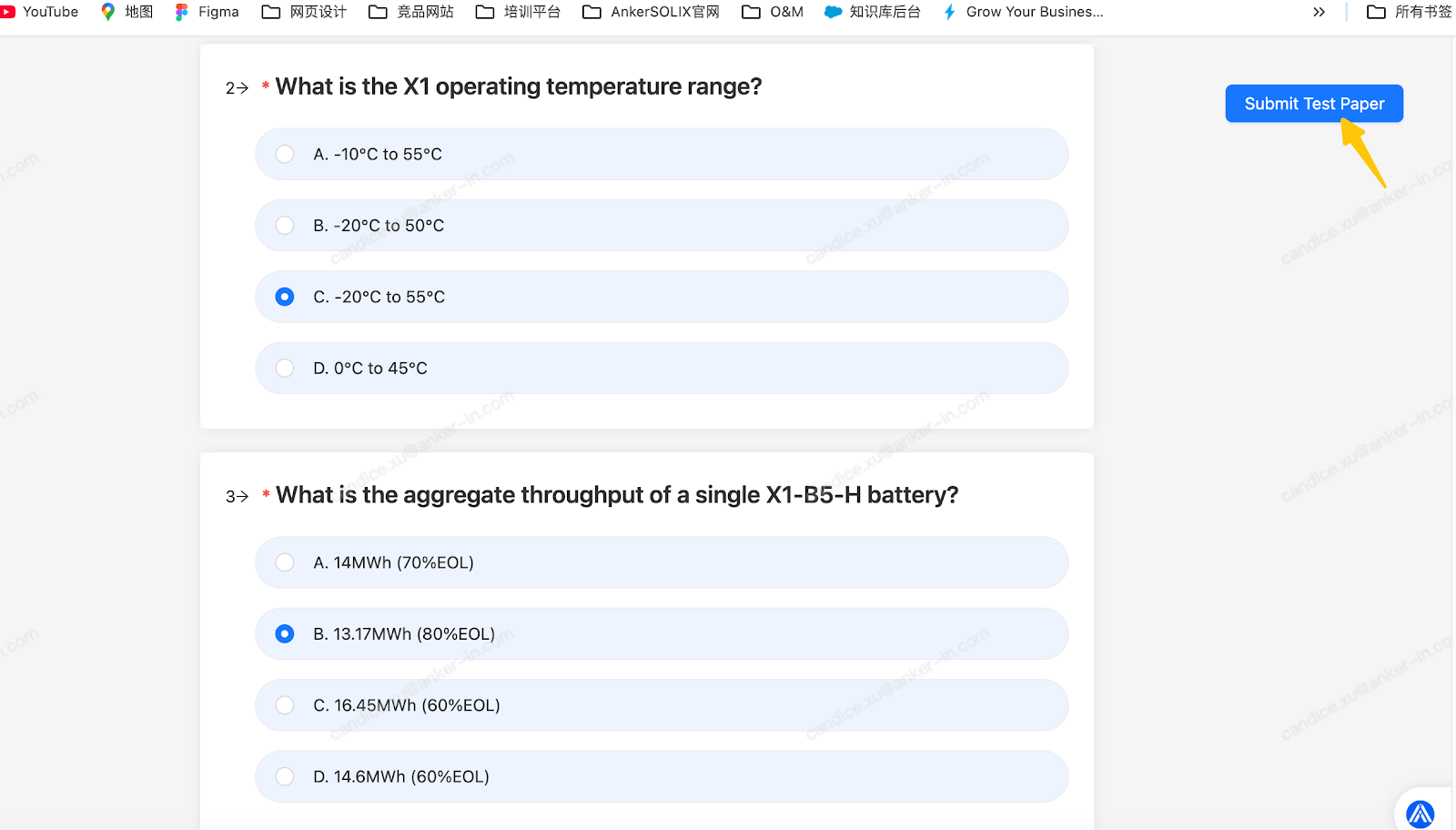
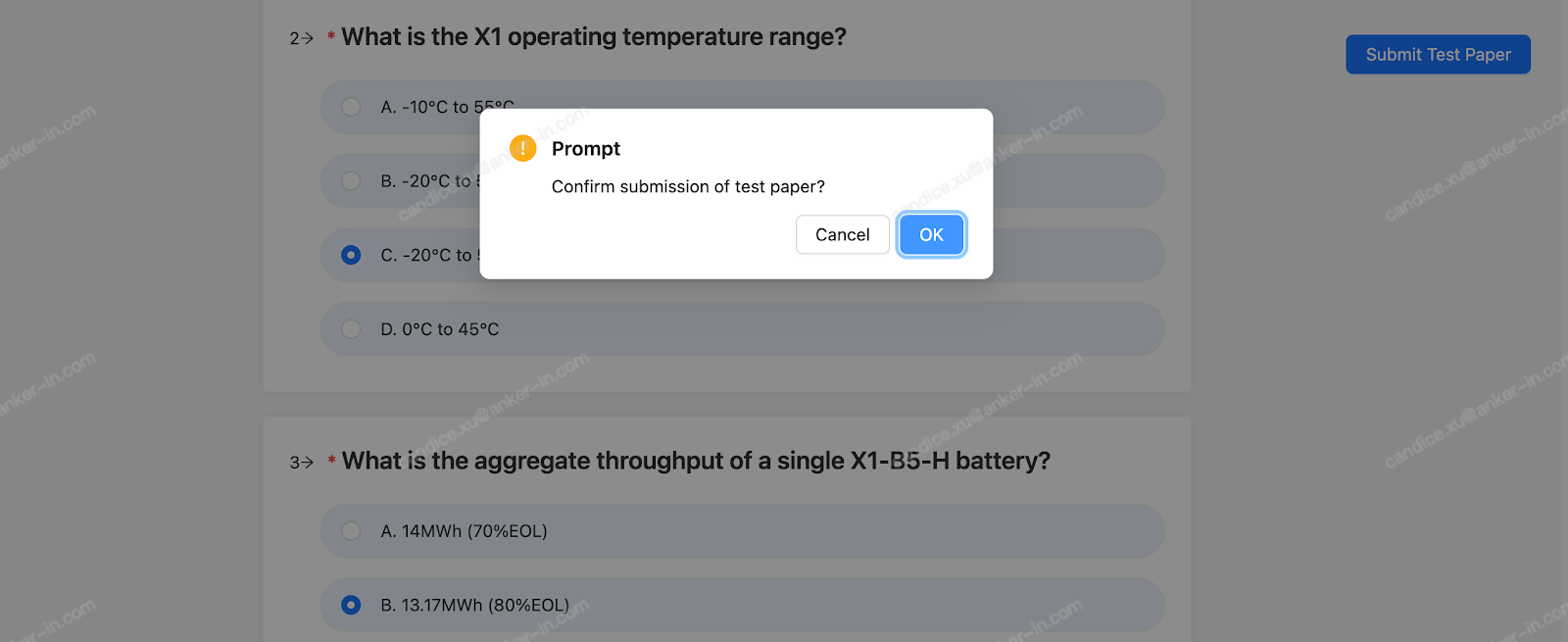
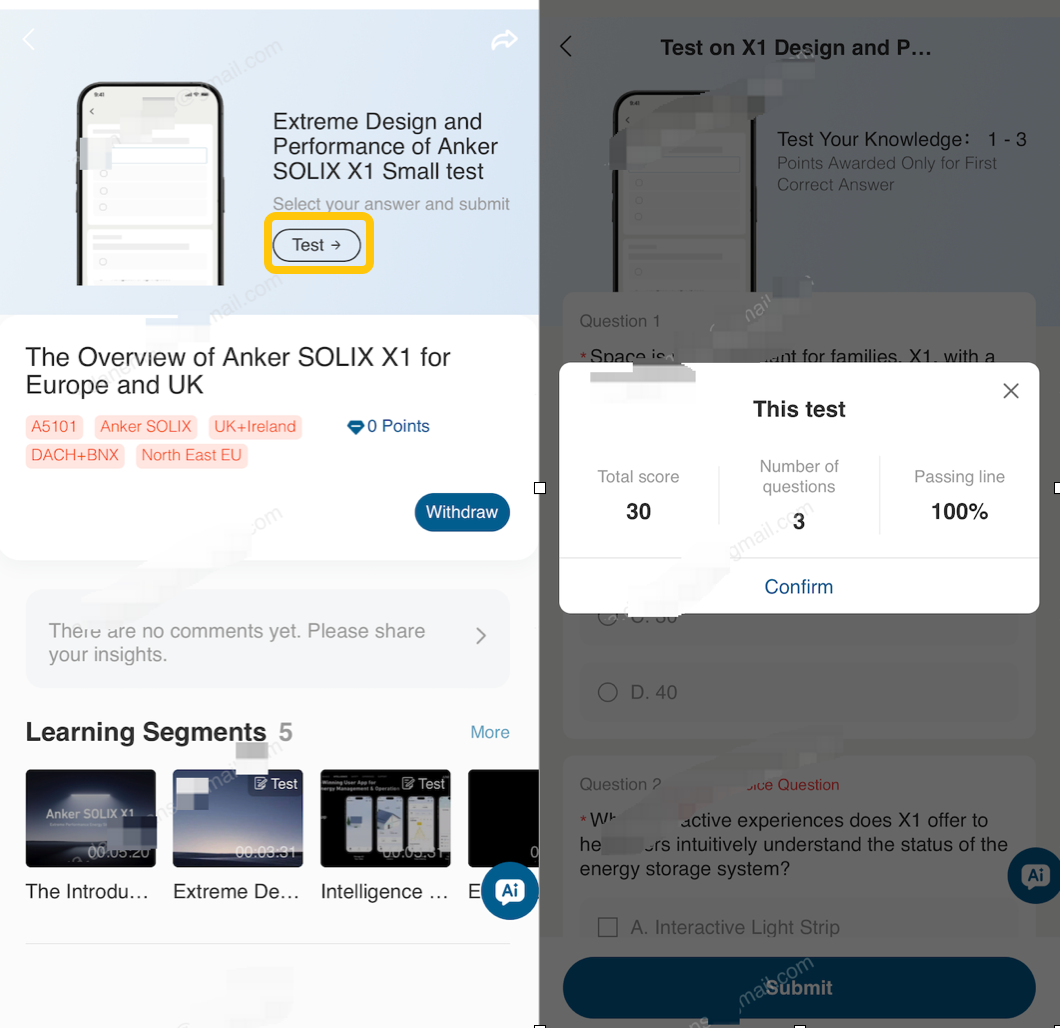
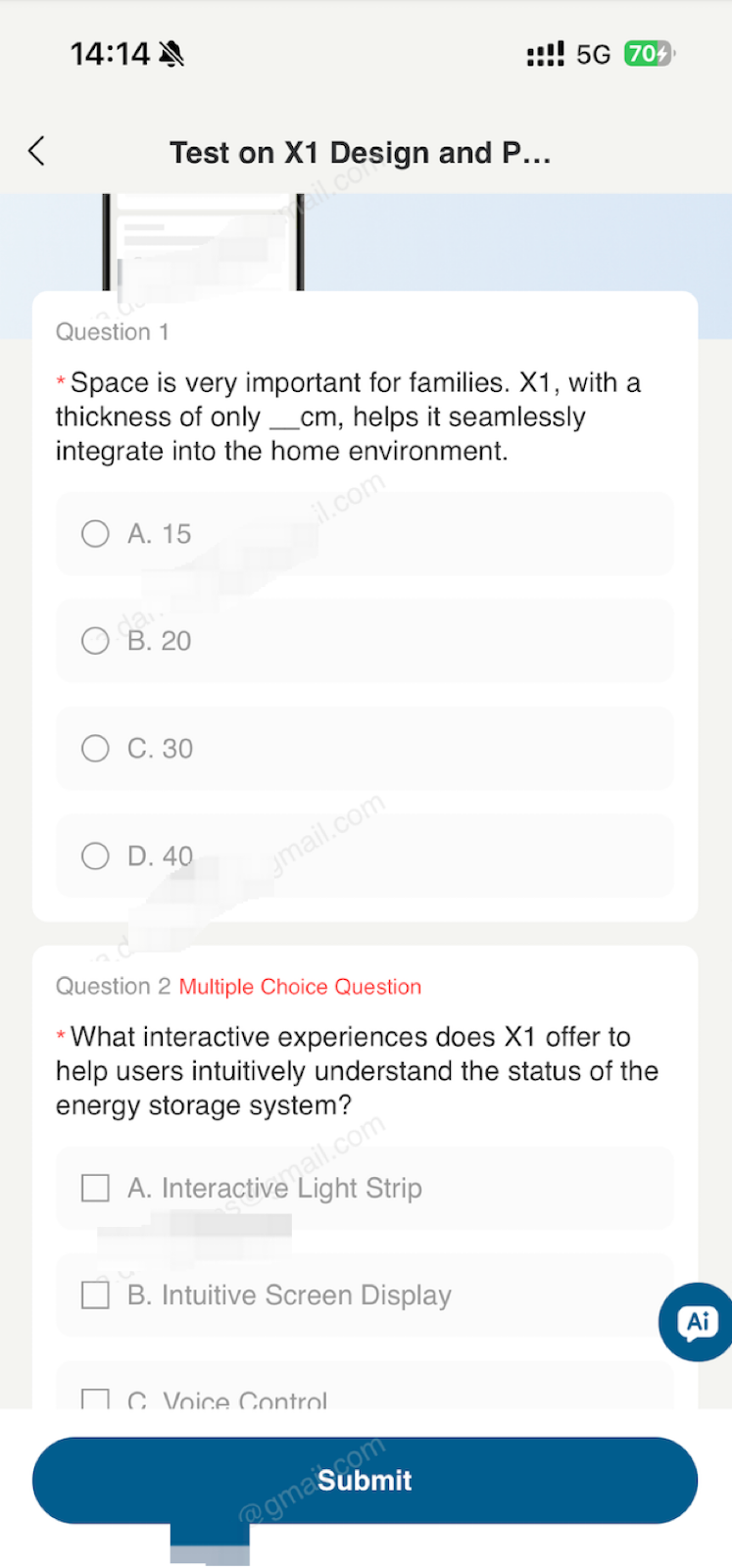
Step 3: After some chapters, you need to take a test

Step 3: After some chapters, you need to take a test

Each course includes videos and reading material. Completion status will be updated automatically once all modules are finished.

Language Settings

The platform language will automatically match your system language.

If the platform language is not your preferred one, you can change it by following guide
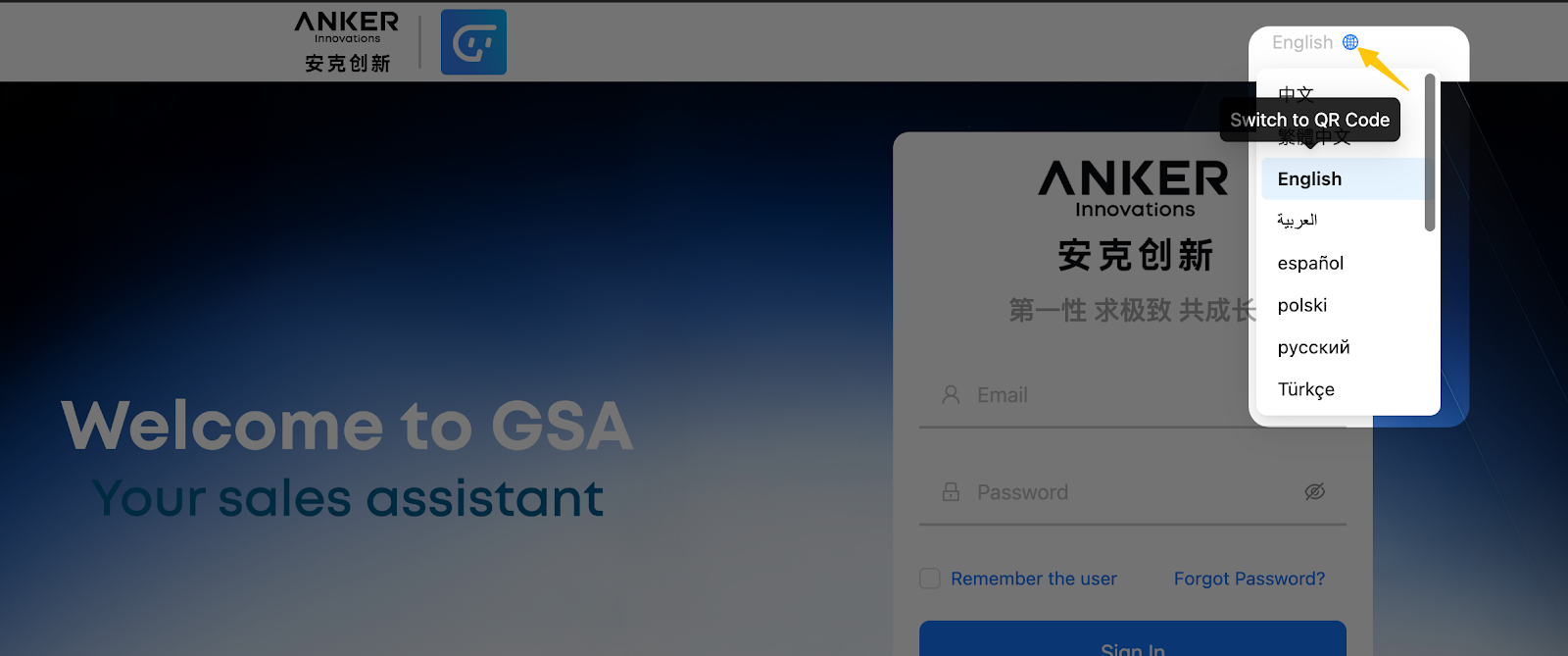
 

GSA Web Portal

GSA APP

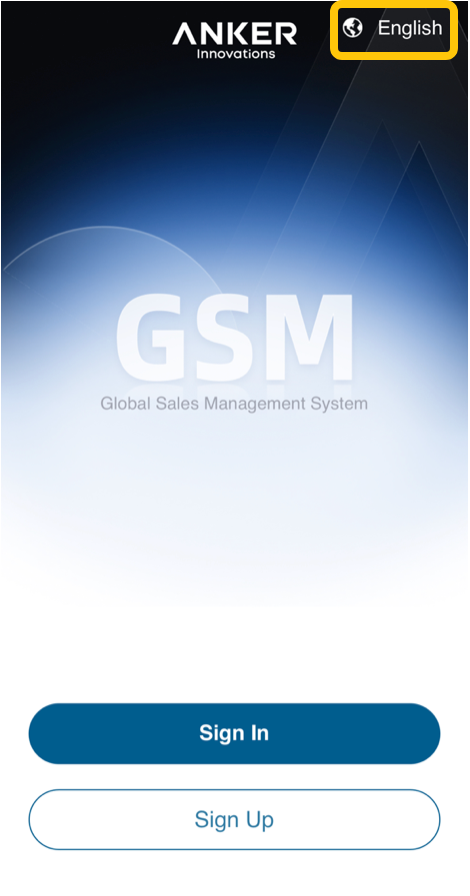
Before Login

Click the language button in the upper‑right corner of the screen to switch the platform language.

Click the language button in the upper‑right corner of the screen to switch the platform language.

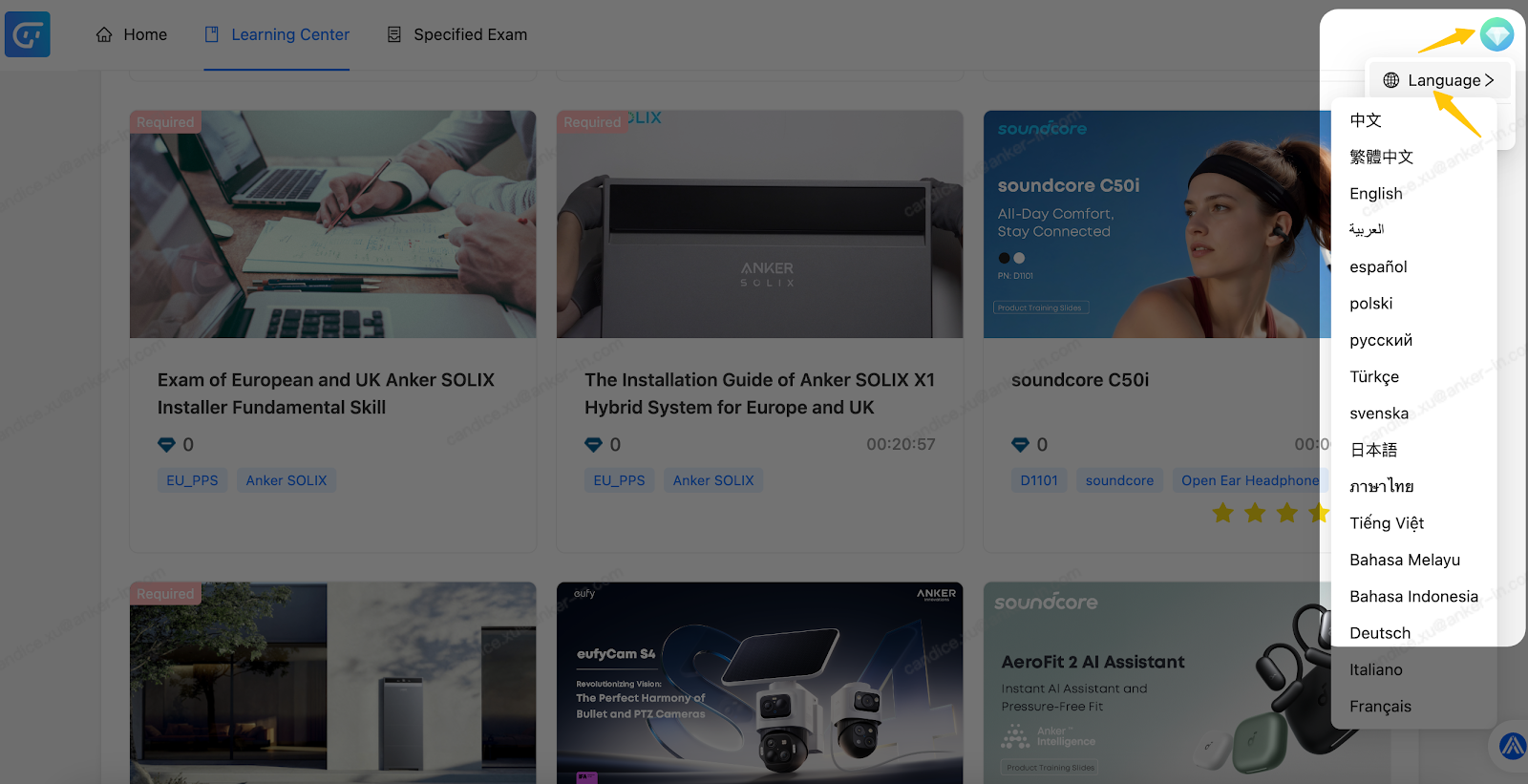
After Login

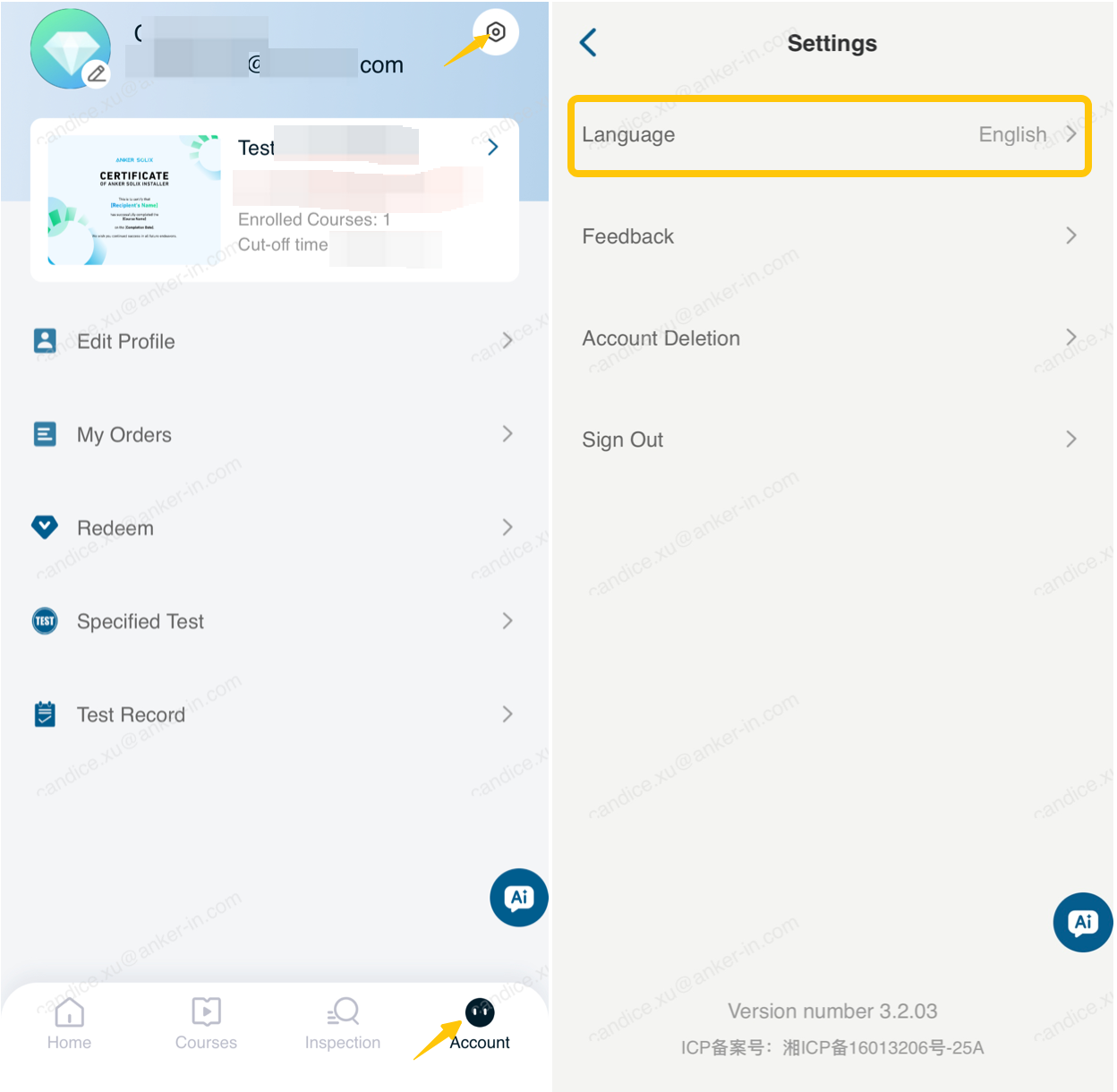
Click the green button in the upper‑right corner, then select Language to change the platform language.

In the App, select Account at the bottom, then click the icon in the upper‑right corner to open the settings page. Choose your preferred language from the options available.

Courses Language

We have launched language‑specific courses for users in Germany, France, and Italy.

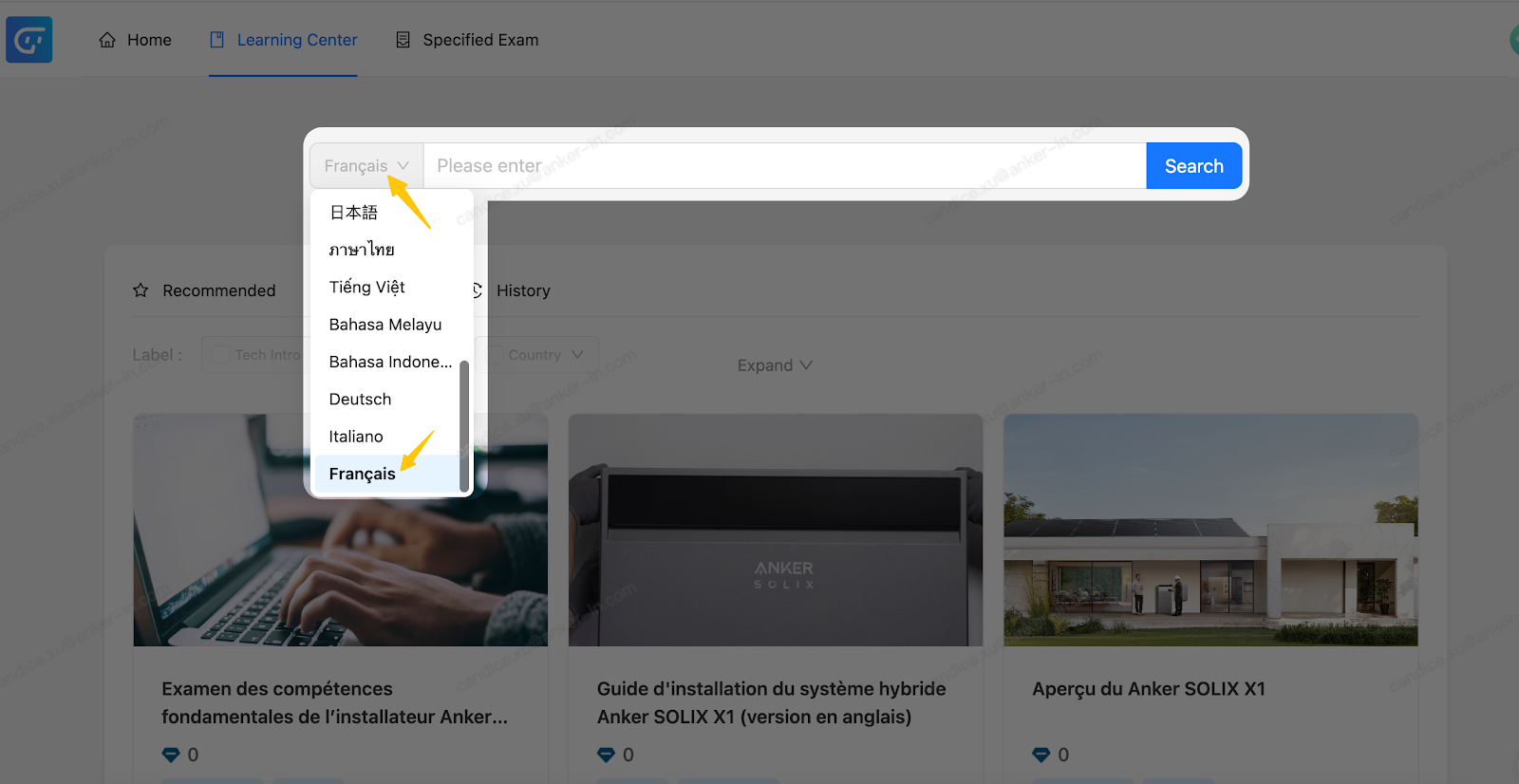
If the courses displayed are in English, go to the All Courses tab and click the button on the left side of the search bar to switch the course language.

We have launched language‑specific courses for users in Germany, France, and Italy.

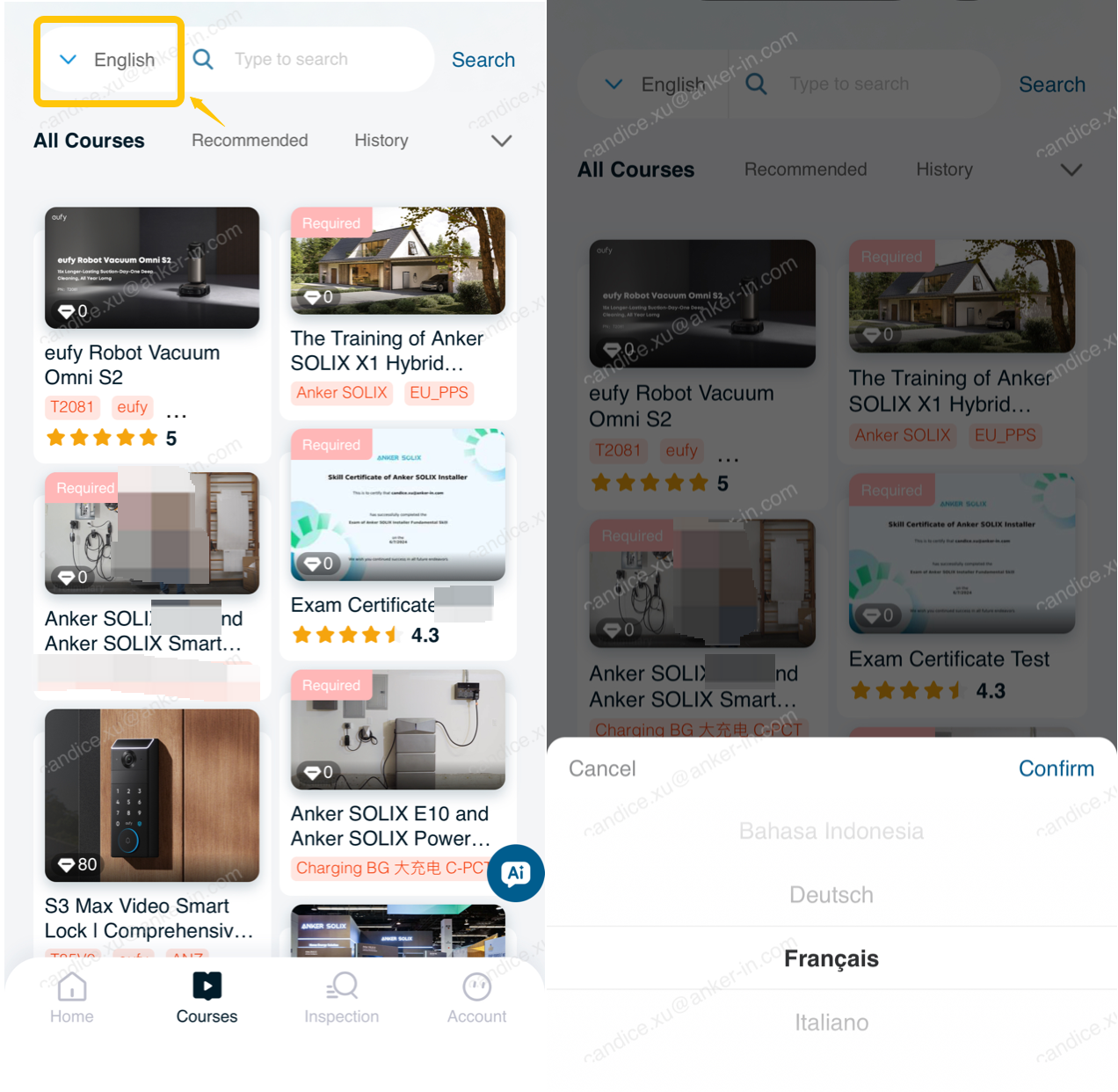
If the courses displayed are in English, go to the All Courses tab and click the button on the left side of the search bar to switch the course language.

Feedback and Support

If you encounter any issues or have questions while using the GSA platform, please share your feedback through the following form: GSA Issue Feedback Form

Our team will review your submission and get back to you as soon as possible.

Your input helps us continuously improve the platform experience — thank you for your support.

Unresolved icon
53 undefined
Download icon
Anker SOLIX Smart Inlet Box Quick Start Guide for US
Download icon
Anker SOLIX Smart Inlet Box Quick Start Guide for Canada
Download icon
Get Started with Anker SOLIX Power Dock or Anker SOLIX Smart Inlet Box for Canada
Download icon
Get Started with Anker SOLIX Power Dock or Anker SOLIX Smart Inlet Box for US
Download icon
Anker SOLIX E10 & Power Dock & Smart Inlet Box & Smart Generator Datasheet
Download icon
CUL/UL1741 Safty Certificate of Anker SOLIX Smart Inlet Box
View More
Play videoAnker SOLIX Smart Intlet Box & E10 System and Installation Walkthrough Video
Anker SOLIX Smart Intlet Box & E10 System and Installation Walkthrough Video
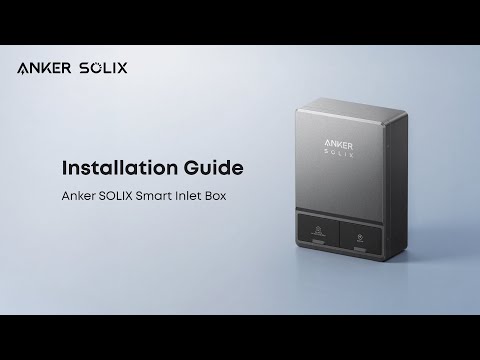
Play videoHow to Install Anker SOLIX Smart Inlet Box
How to Install Anker SOLIX Smart Inlet Box
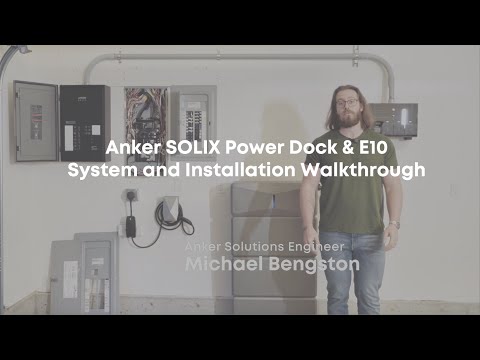
Play videoAnker SOLIX Power Dock & E10 System and Installation Walkthrough Video
Anker SOLIX Power Dock & E10 System and Installation Walkthrough Video
Play videoHow to Install Anker SOLIX Power Dock
How to Install Anker SOLIX Power Dock
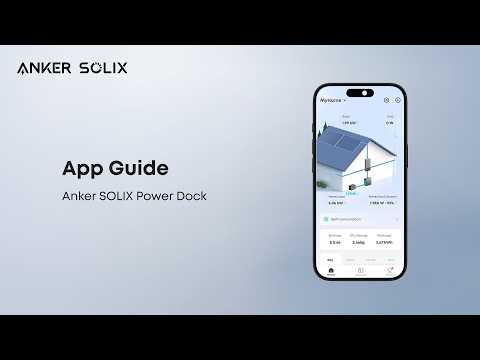
Play videoHow to Set Up Anker SOLIX Power Dock via the Anker App
How to Set Up Anker SOLIX Power Dock via the Anker App
Play videoCómo instalar Anker SOLIX Power Dock (la base de energía Anker SOLIX)
Cómo instalar Anker SOLIX Power Dock (la base de energía Anker SOLIX)
View More