3. Parallel COM Cable Connection
4. System Commissioning – App Operation
Applicable Models: Anker SOLIX X1 Hybrid Power Module – 1P & 3P
Scenario: Two-system parallel operation (Master + Slave)
Version information
1. Installation Preparation
Note: For system expansion (adding X1 or Power Dock Pro), the existing X1 battery SoC must be above 5%. Otherwise, system commissioning will fail.
-
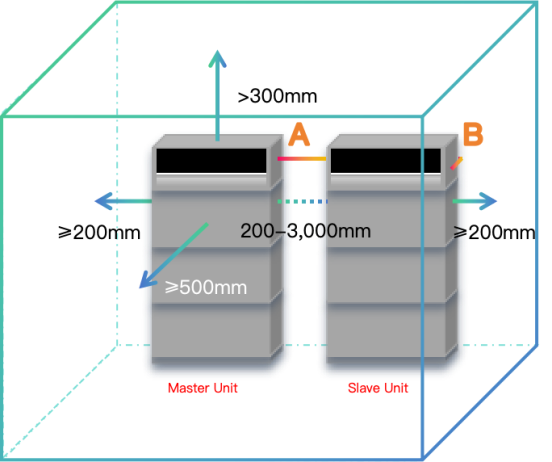
Spacing:
-
For X1 system
-
Same requirement as for a single X1 system.
-
Ensure the COM ports (A & B) of Master and Slave modules are within 9m if not using parallel COM cable from Anker SOLIX.
-
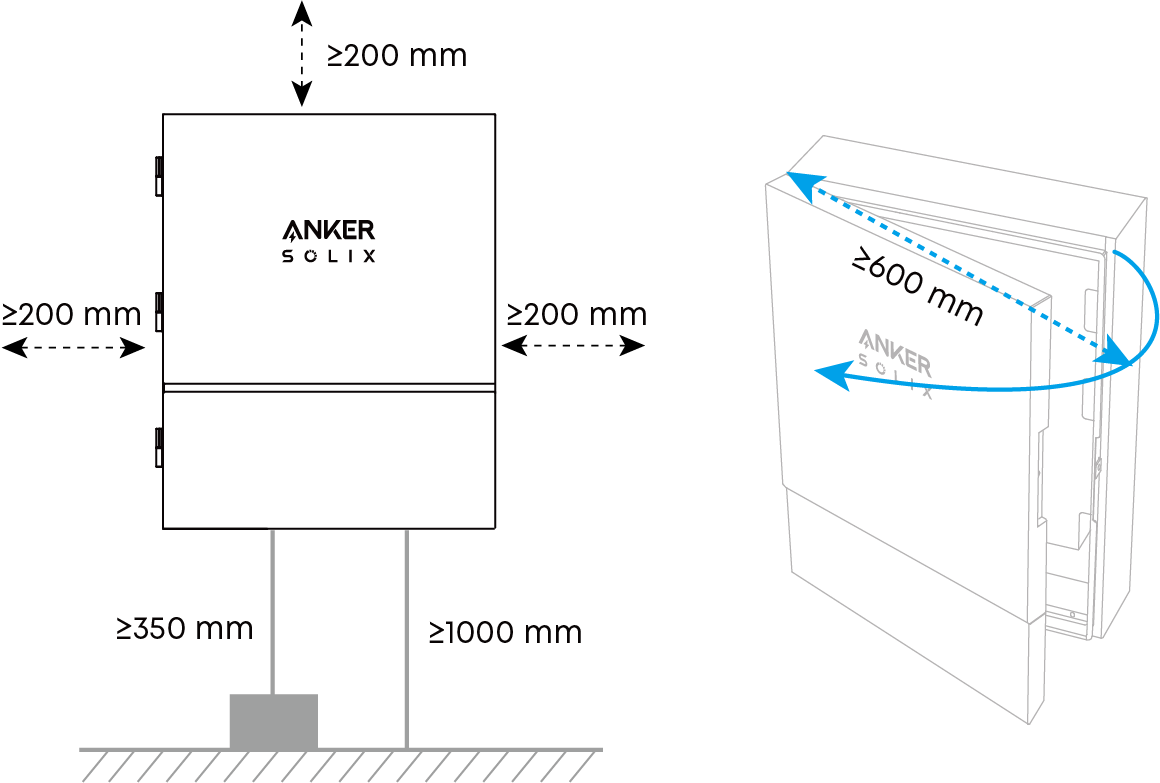
For Power Dock Pro
Plan cable routing so that the communication cable to the X1 Power Module does not exceed 60 m (for CAT6A SF/UTP) or 30 m (for standard Ethernet cables).
(2) Battery Cable Connection:
-
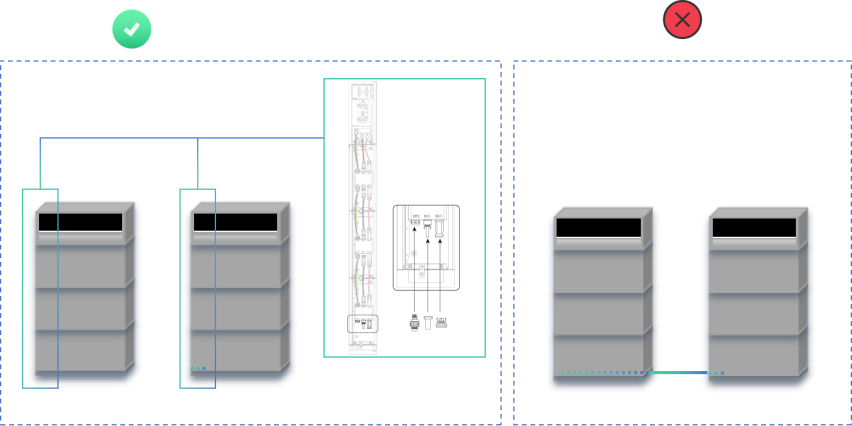
Battery power and signal cables connect as with a single unit.
-
Do not connect signal cables between battery packs of different modules.
(3) PV Connection:
-
If no PV panels are connected yet, the Master can handle up to the single-system maximum PV input.
-
One PV array must not be shared between Master and Slave modules.
-
Follow single-unit wiring details.
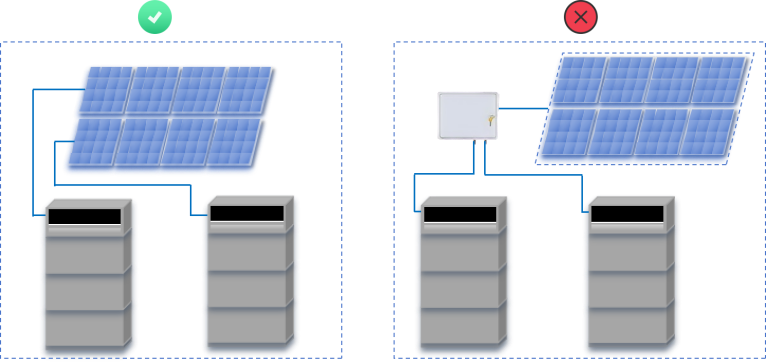
(4) Power Dock Pro Connection:
Note:
-
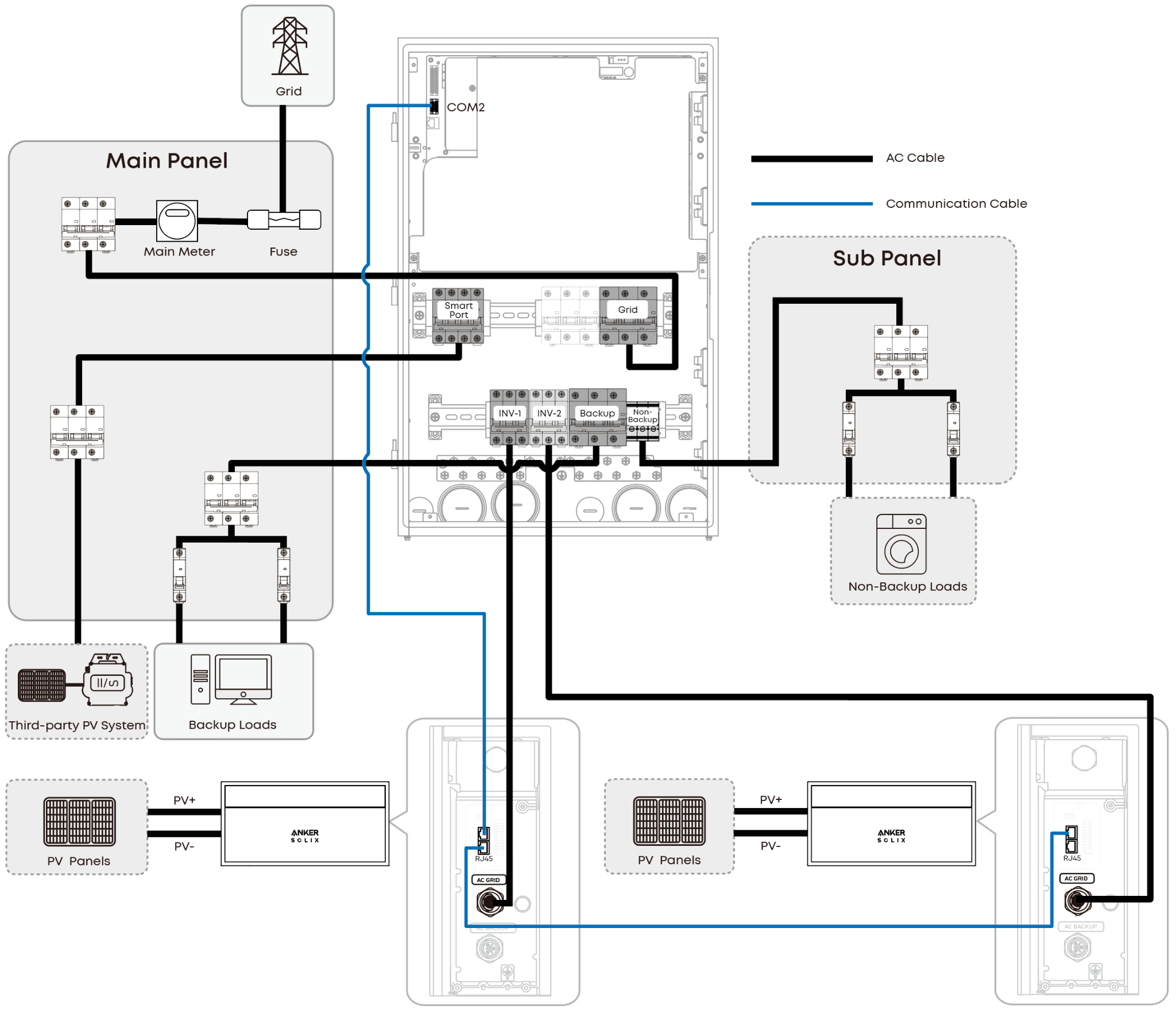
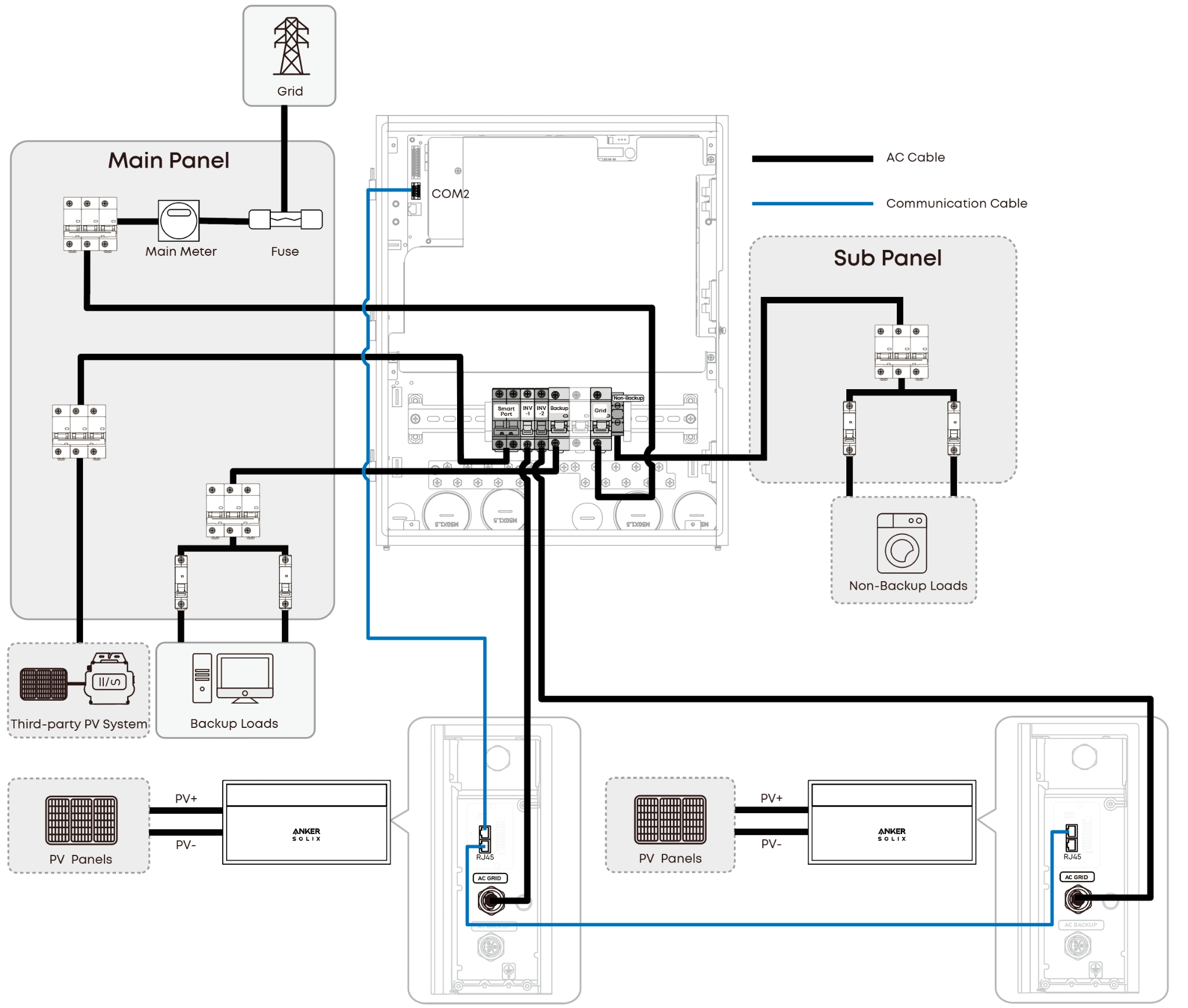
Power Dock Pro only supports X1 dual parallel systems. 3-6 parallel systems are not supported.
-
Smart Port Input Limits:
-
Single-phase Power Dock Pro: Up to 10 kW
-
Three-phase Power Dock Pro: Up to 30 kW
-
Compatibility Rules:
-
Phase Match Required: Single-phase docks only work with single-phase X1 units. Three-phase docks only work with three-phase X1 units.
-
Same Power Rating Required: Paralleled X1 units must have the exact same power rating. Mixing different models (e.g., 10 kW and 12 kW) is not supported.
Three-Phase Connection:
Single-Phase Connection:
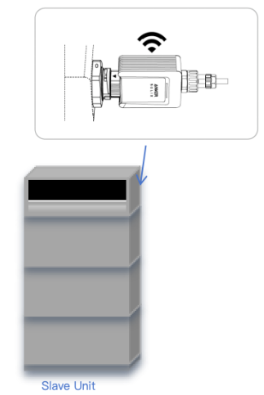
(5) Dongle:
Plug one dongle into the Slave module (for firmware update).
2. Firmware Update
⚠️ Important: Do not connect the COM cable until both modules are fully updated.
Step-by-step:
(1) Power on both Master and Slave modules and their batteries.
(2) Make sure the dongle is inserted into the Slave module.
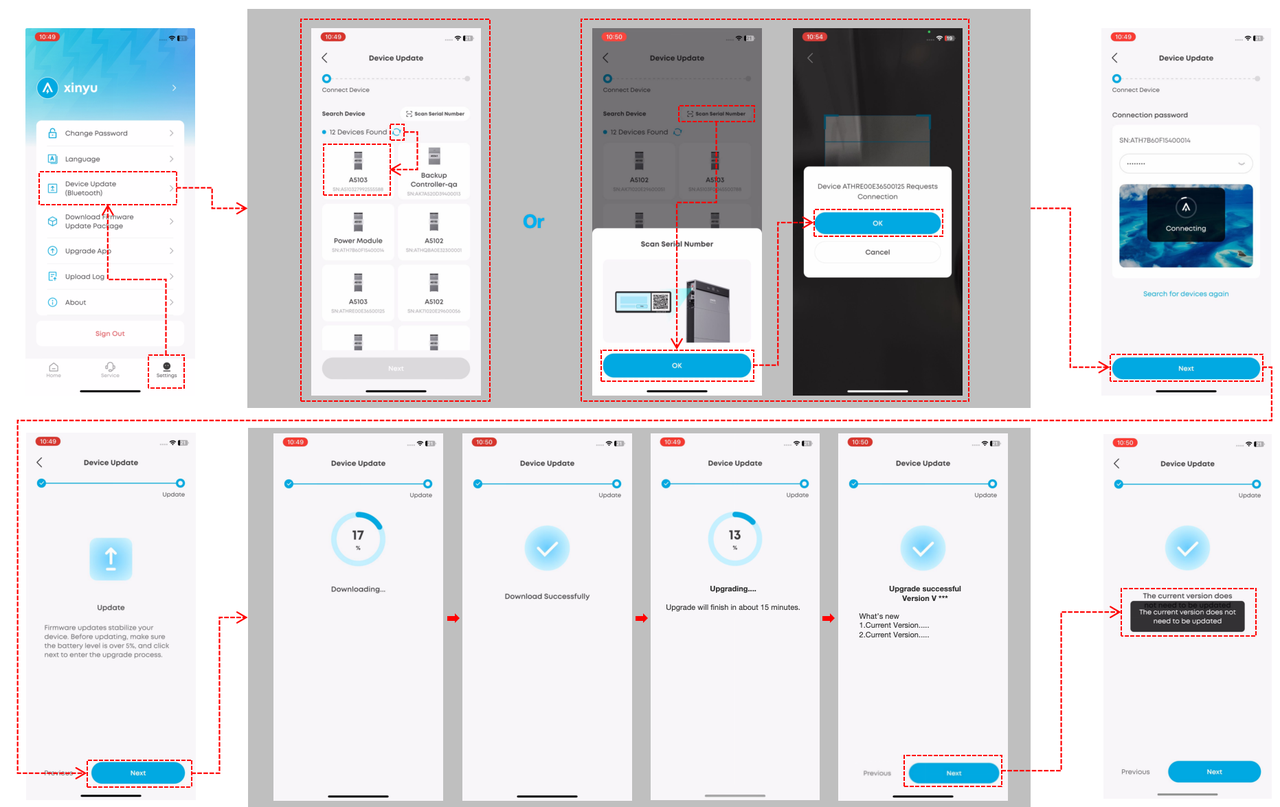
(3) Open the AnkerSOLIX App
-
Go to Settings → Device Update (Bluetooth)
(4) Follow the procedure below:
-
Connect devices (auto discovery or scan SN)
-
Tap OK
-
Enter the connection password
-
Tap Next after connection
-
Installs the firmware automatically
-
Wait until the update completes successfully
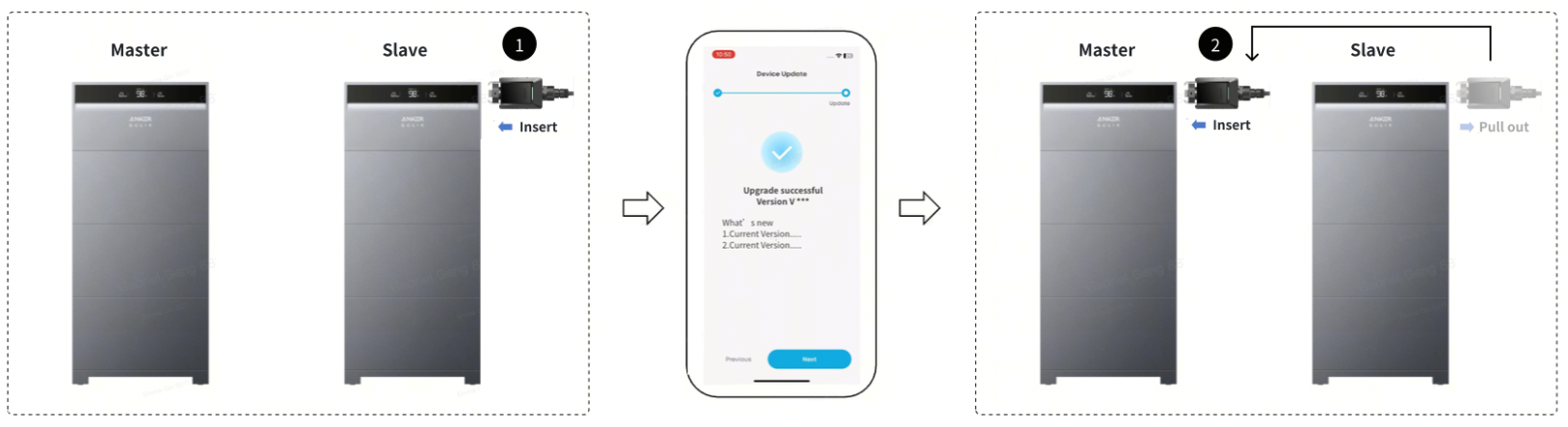
(5) After finishing Slave update:
-
Remove the dongle from Slave
-
Insert it into Master
-
Repeat the same update process
-
After completion, keep the dongle in the Master module
Note Battery SOC Requirements for Firmware Update:
-
Firmware Update cannot start if SOC < 5 %.
-
To charge: keep the system connected to mains supply.
-
Charging stops automatically once SOC reaches ≈8 %.
-
Proceed with firmware update after this charging step.
3. Parallel COM Cable Connection
Condition: Both modules must have firmware version ≥ V1.0.11.X
-
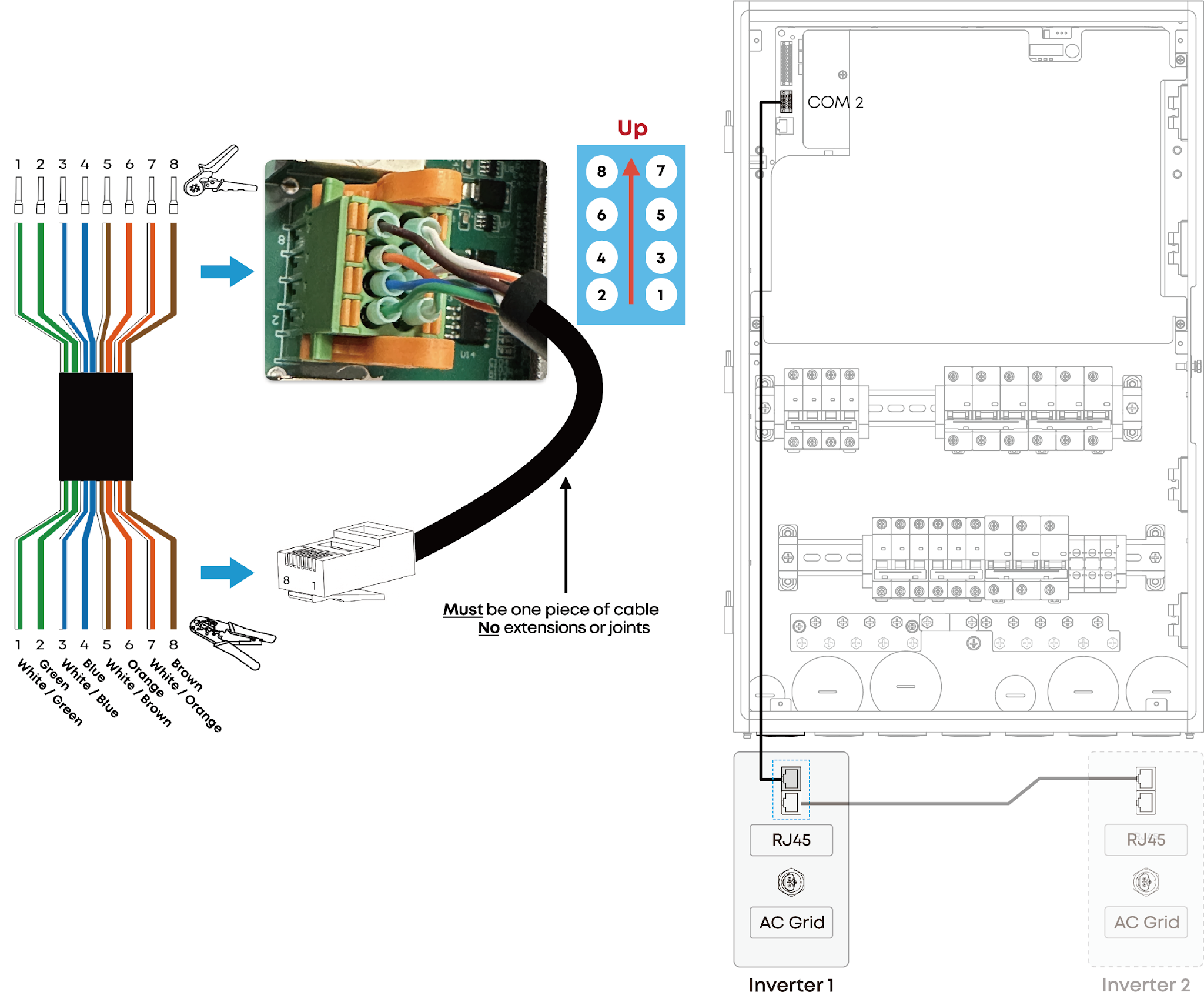
Parallel COM Cable Connection for X1 Dual Parallel System
(1) Prepare the COM cable.
-
Make sure wire sequence meets the required specification.
-
Recommended total cable length ≤ 9 m.
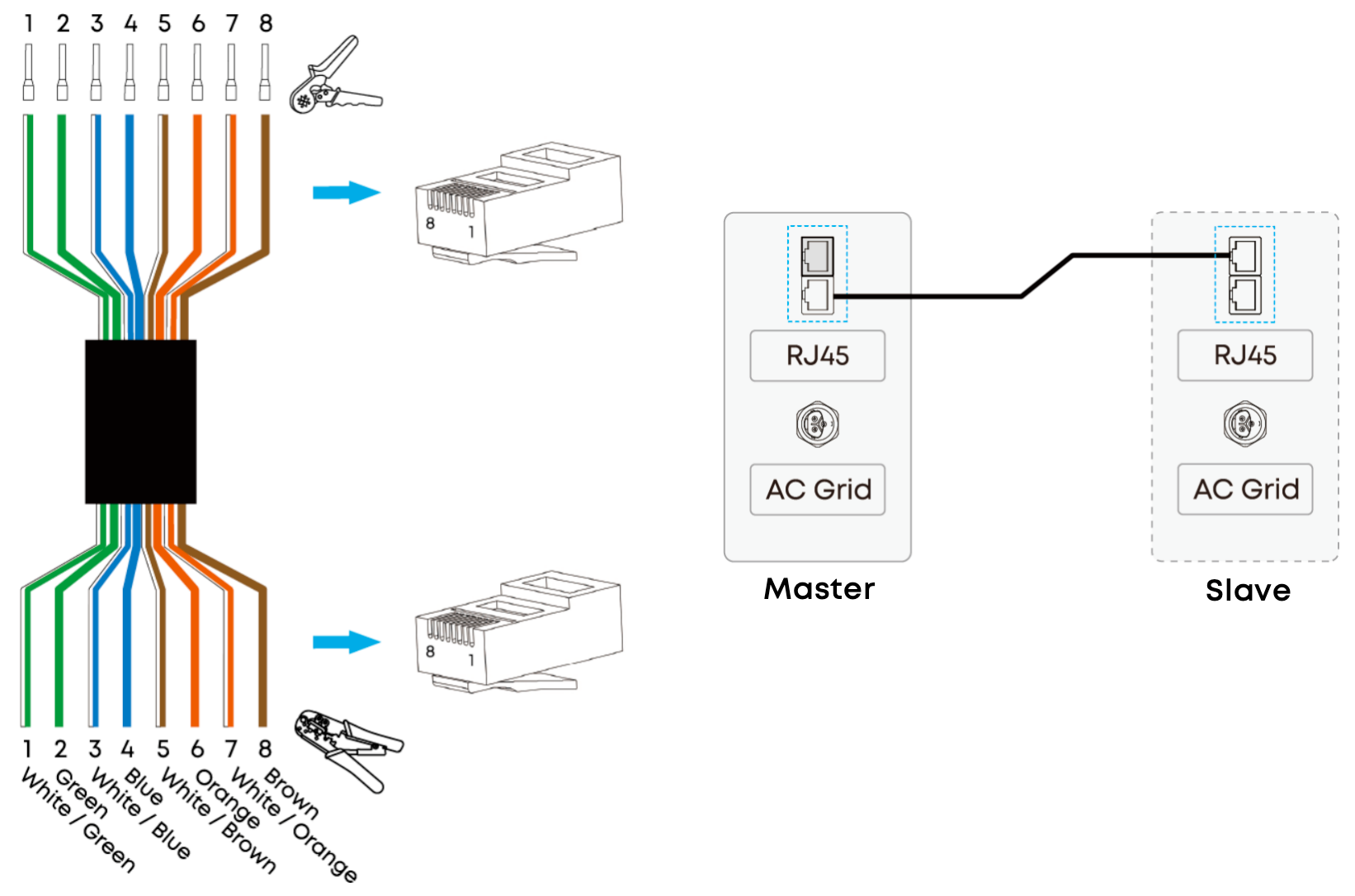
(2) Connect COM cable (SKU: A5682G14):
-
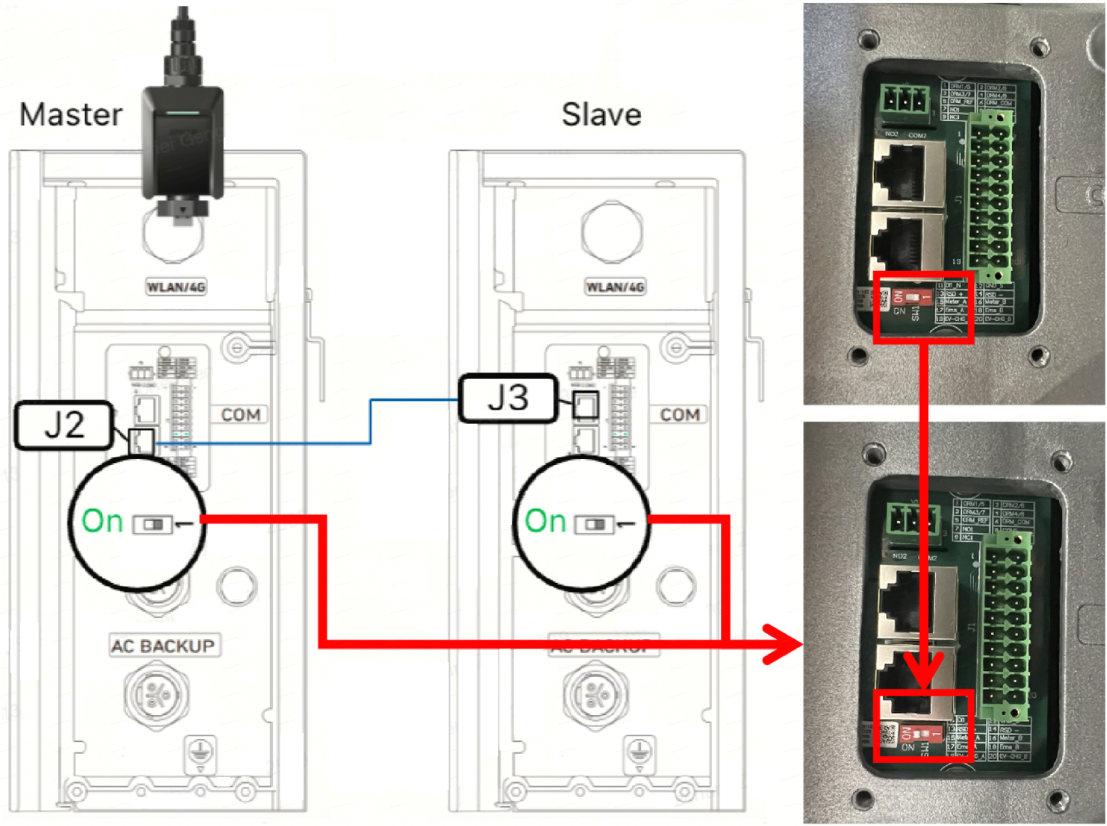
Master J2 ↔ Slave J3
(3) Set DIP switches on both modules to ON.
-
COM Cable Connection Between X1 and Power Dock Pro
4. System Commissioning – App Operation
⚠️ Important:
-
Please make sure the SOC showed on the paired power modules are exactly the same.
-
If they are different, please follow Step 3 "Parallel COM Cable Connection" to check the master-slave parallel COM cable and DIP switches. Otherwise, the following setup cannot be completed.
Select the workflow based on the installation case 👇
A. Two brand-new systems (first-time parallel setup)
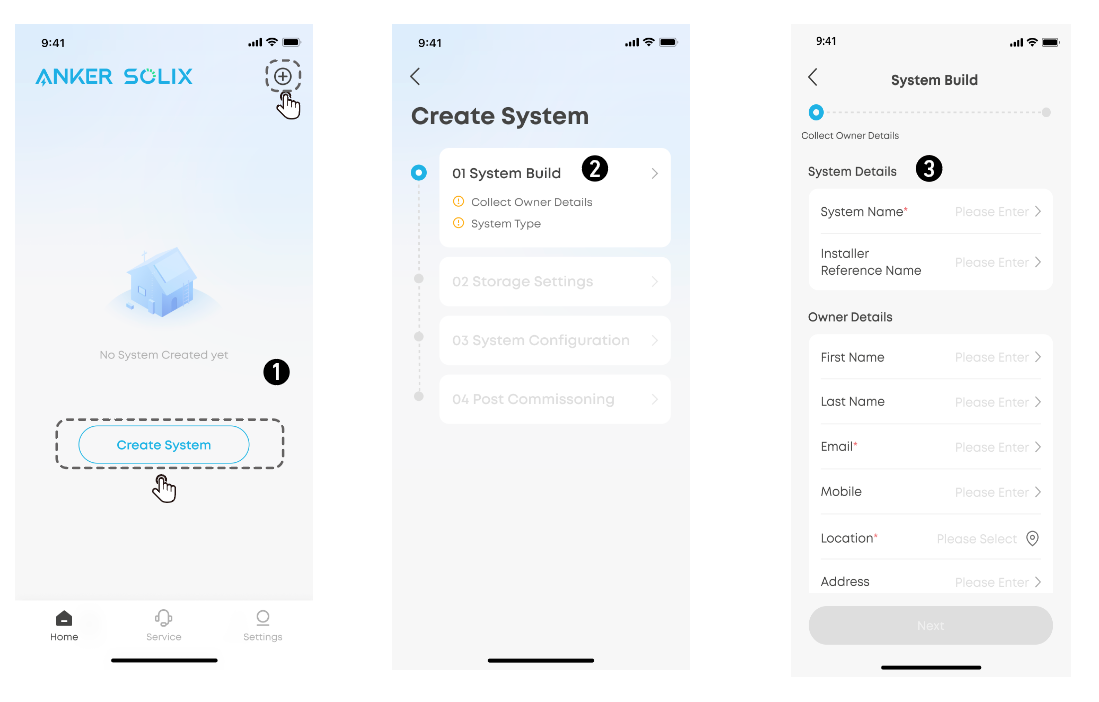
Build System
-
On the app’s Home screen → tap Create System (or "+" icon).
-
Go to System Build. Input the system and owner information.
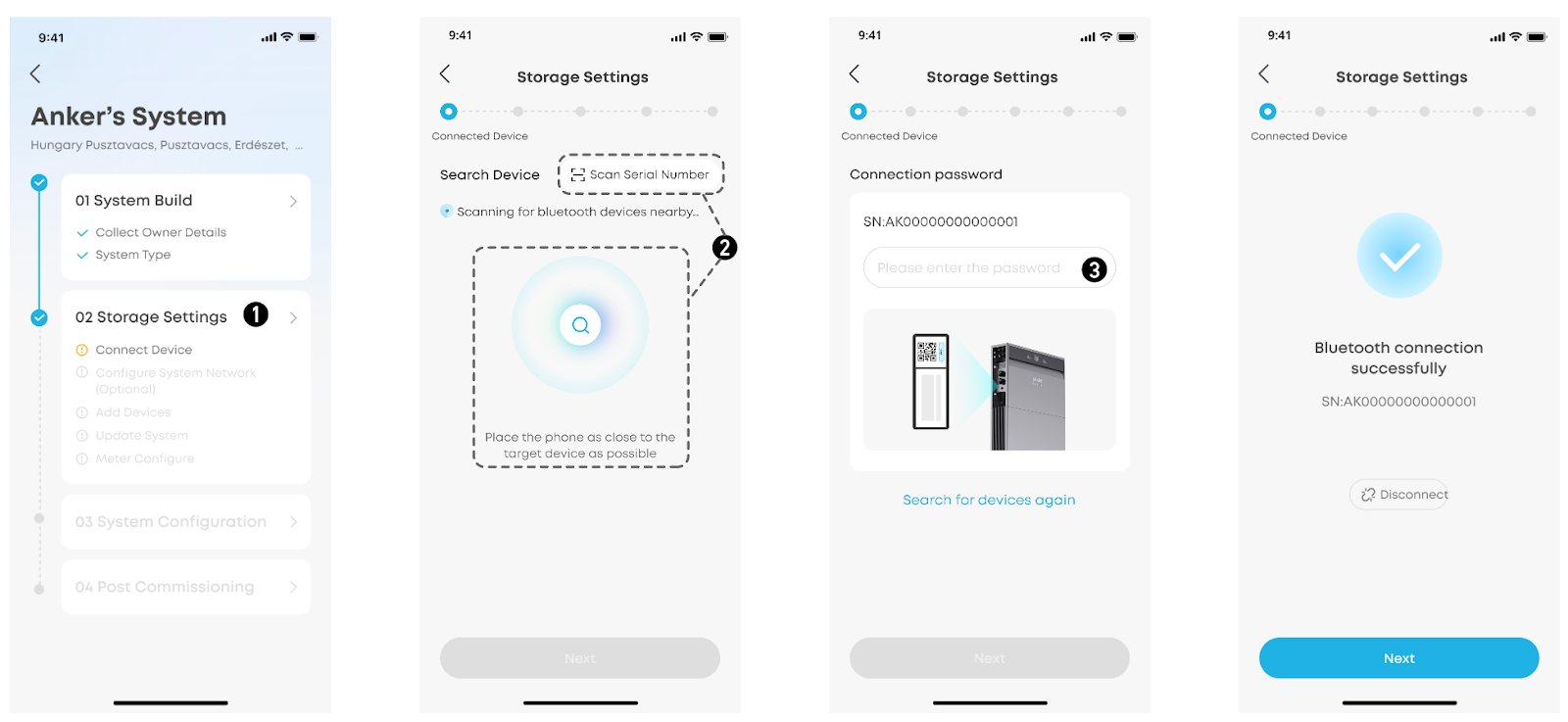
Storage Settings
-
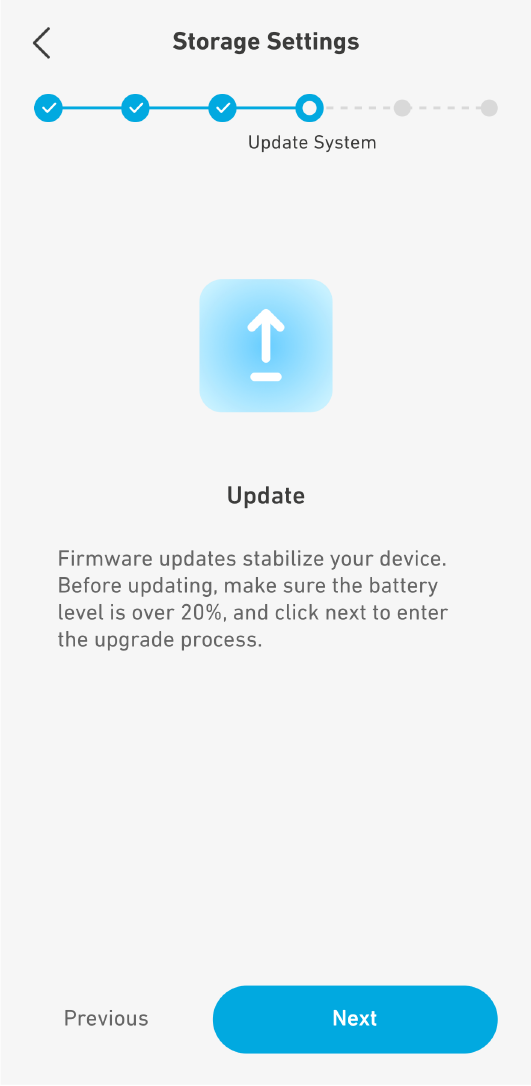
Enter Storage Settings, follow the single-module setup steps.
-
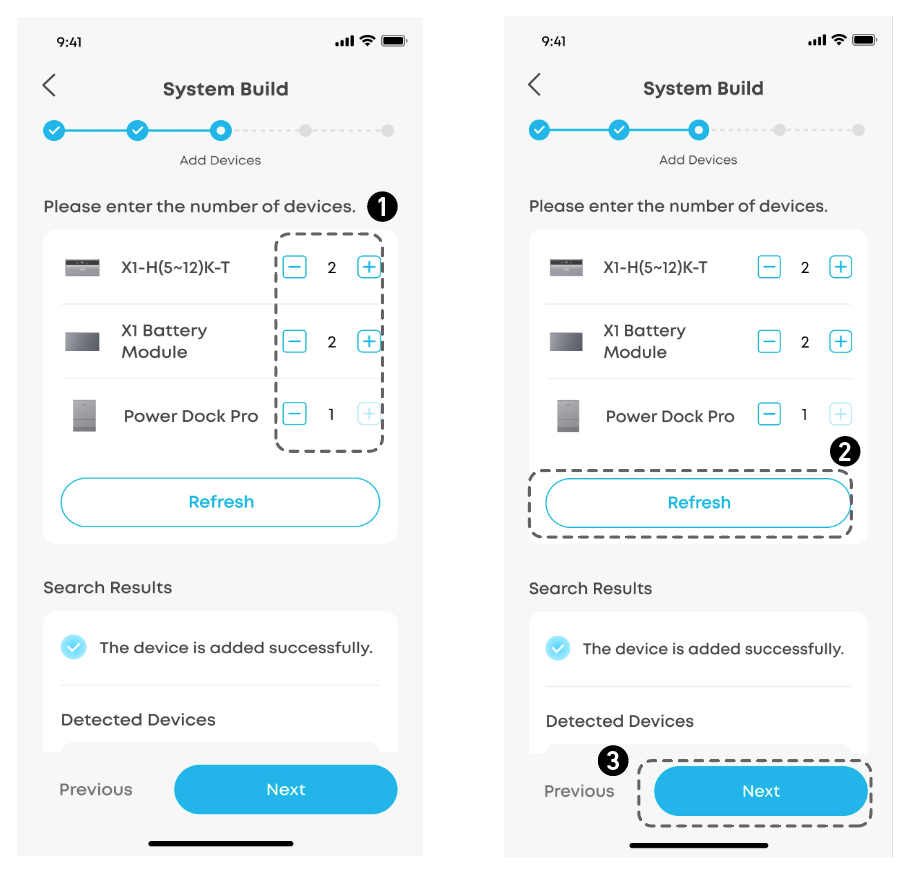
When adding equipment, ensure 2 Power Modules and 1 Power Dock Pro are selected for parallel operation.
-
After adding the correct number of modules → tap Next → Device Update page appears.
-
Complete firmware upgrade → tap Back, continue commissioning steps.
-
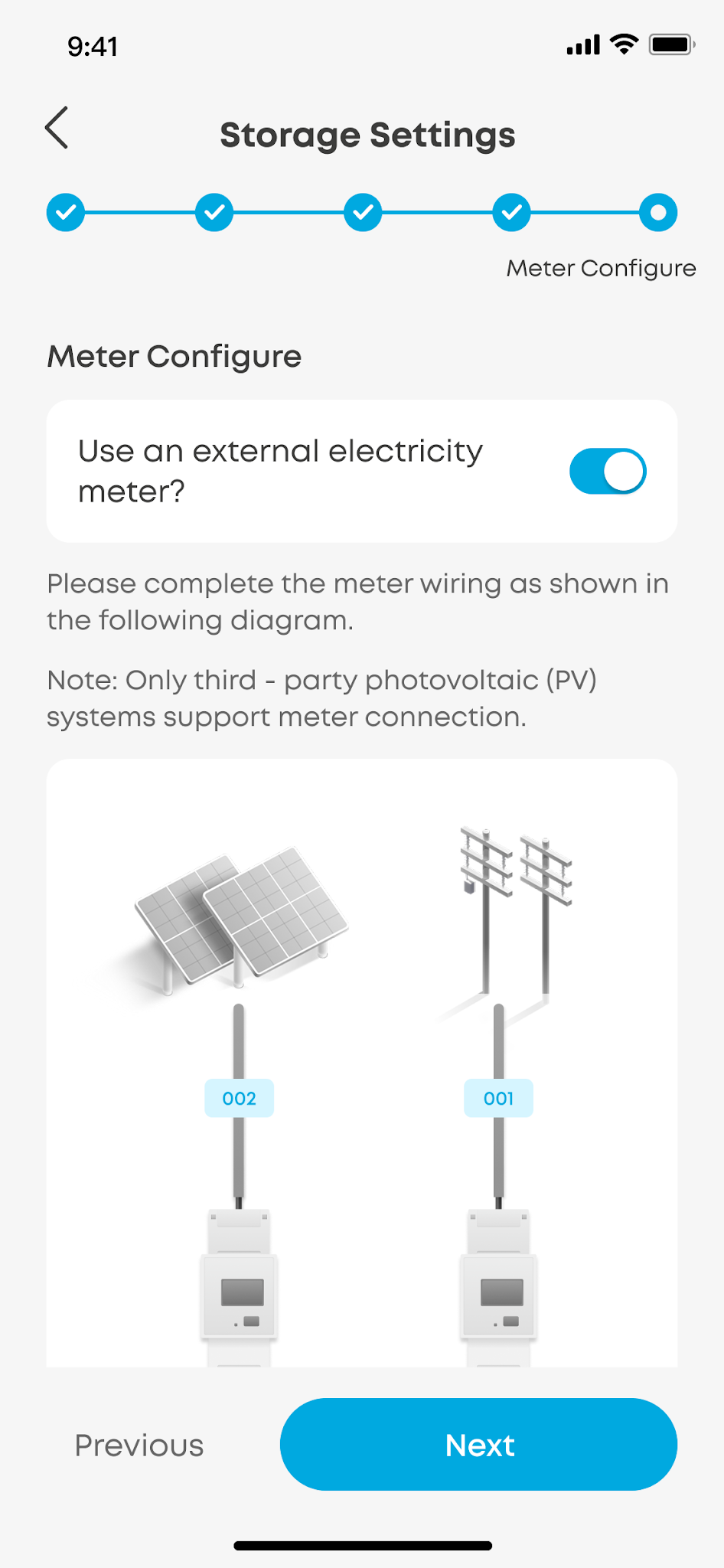
Configure the meter settings based on your installation scenario:
-
Scenario 1: No External Meter (Toggle OFF)
Built-in CT monitors both grid and Smart port.
-
Scenario 2: External Meter Required (Toggle ON)
Select this if the system is used for partial home backup, or if a third-party solar system is NOT connected to the Smart port.
If an external meter is required, see the user guide for details:
-
Three-phase: Anker SOLIX Power Dock Pro Three-Phase User Guide
-
Single-phase: Anker SOLIX Power Dock Pro Single-Phase User Guide
System Configuration
-
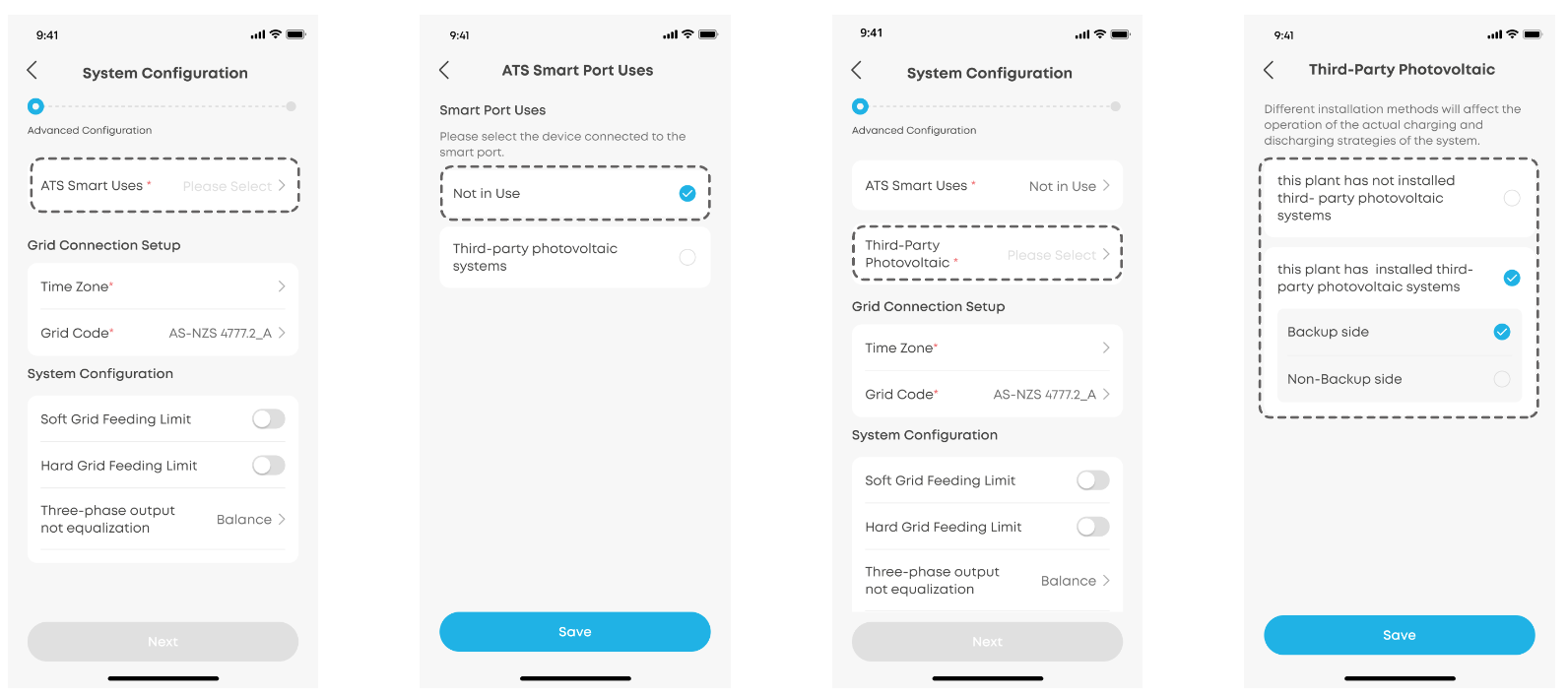
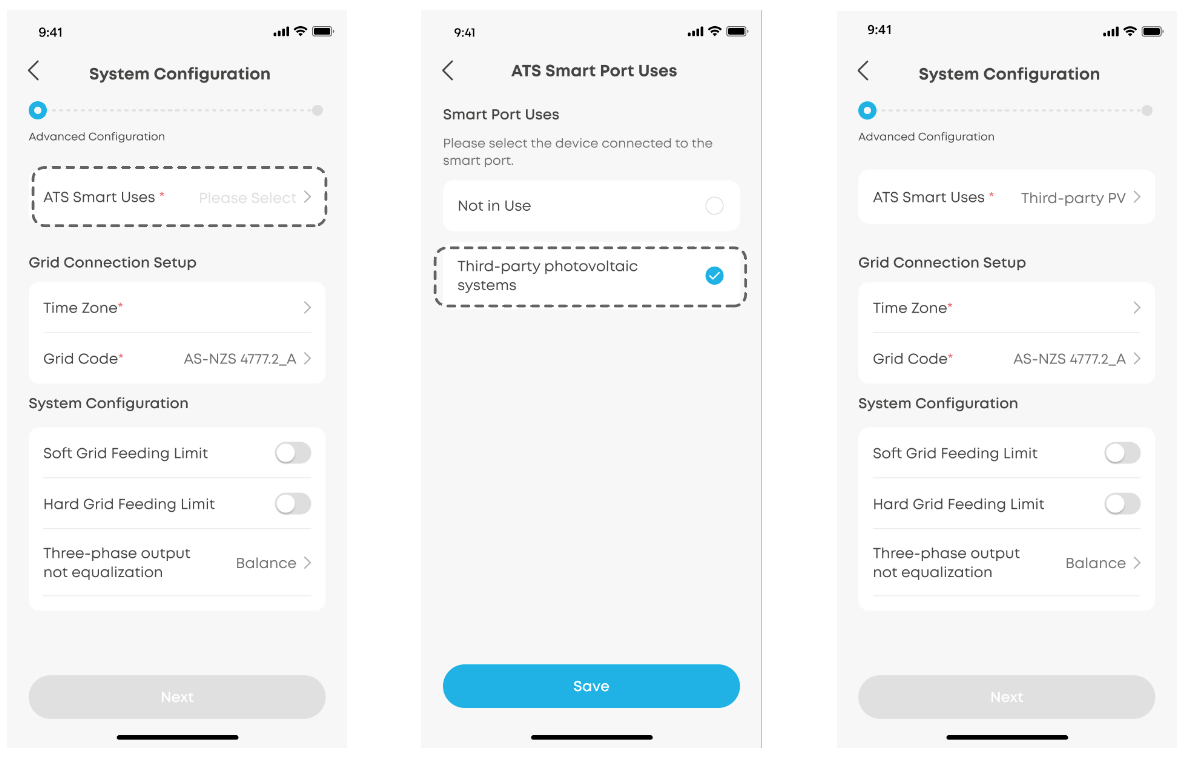
Select the device connected to the smart port of Power Dock Pro.
-
Scenario 1: If no device is connected to the smart port, select Not in Use, then complete third-party photovoltaic settings.
-
Scenario 2: If a third-party PV system is connected to the smart port, select Third-party photovoltaic systems.
-
Complete other system settings.
-
Tap Start to perform the system test.
B. Expanding an existing system (same installer account)
(1) On the Home screen → search for the existing system.
(2) Enter 02 Storage Settings – Add Devices.
(3) Modify the number of Power Modules as needed, and add 1 Power Dock Pro.
(4) Continue normal commissioning steps.
C. Expanding an existing system (under different installer account)
(1) Provide the System IDs and the new installer's company name to Anker SOLIX Support to transfer the site to the new installer;
(2) Follow Step B
D. Re-commissioning two existing systems into one parallel system
(1) Providing the System IDs to Anker SOLIX support team to be cleared;
(2) Follow Step A
Appendix A
Important Notes ⚠️
-
If the Master fails, the Slave cannot operate in parallel.
-
If the Slave fails, the Master continues to work and uploads the Slave failure status to the cloud/App.
-
If “Clear Site” action is required, follow the commissioning flowchart and contact Anker SOLIX AU Support for guidance.